Convert MP4 to MP3 on Mac: 3 Methods
Convert MP4 to MP3 on Mac with GetCompress, QuickTime, or FFmpeg. Extract audio as M4A by default, or MP3 when a legacy tool requires it.
You recorded a webinar, lecture, or podcast guest on video. The deliverable is audio only: a talk track for editing, a clip for transcription, or an MP3 for a legacy CMS. Dropping the video track cuts size and removes slides you no longer need. Extract locally so interview footage never uploads to a random converter.
MP3 vs M4A from video
On Mac, M4A with AAC is the natural default. Use MP3 only when something downstream rejects AAC.
| Format | Best when |
|---|---|
| M4A (AAC) | Podcasts, Music, modern Mac workflows |
| MP3 | Old CMS embeds, car exports, forms that list MP3 only |
| Source | Starting bitrate |
|---|---|
| Screen recording of a talk | 128 kbps |
| Music-heavy clip | 192 kbps |
| Already noisy laptop mic | Keep 128 kbps; fixing capture beats crushing bitrate |
If you already have M4A and only need MP3, see M4A to MP3 on Mac . For shrinking audio after extraction, see compress audio files on Mac .
Method 1: GetCompress
Best for: Conference folders, consistent bitrate, and trim-before-extract in one queue.
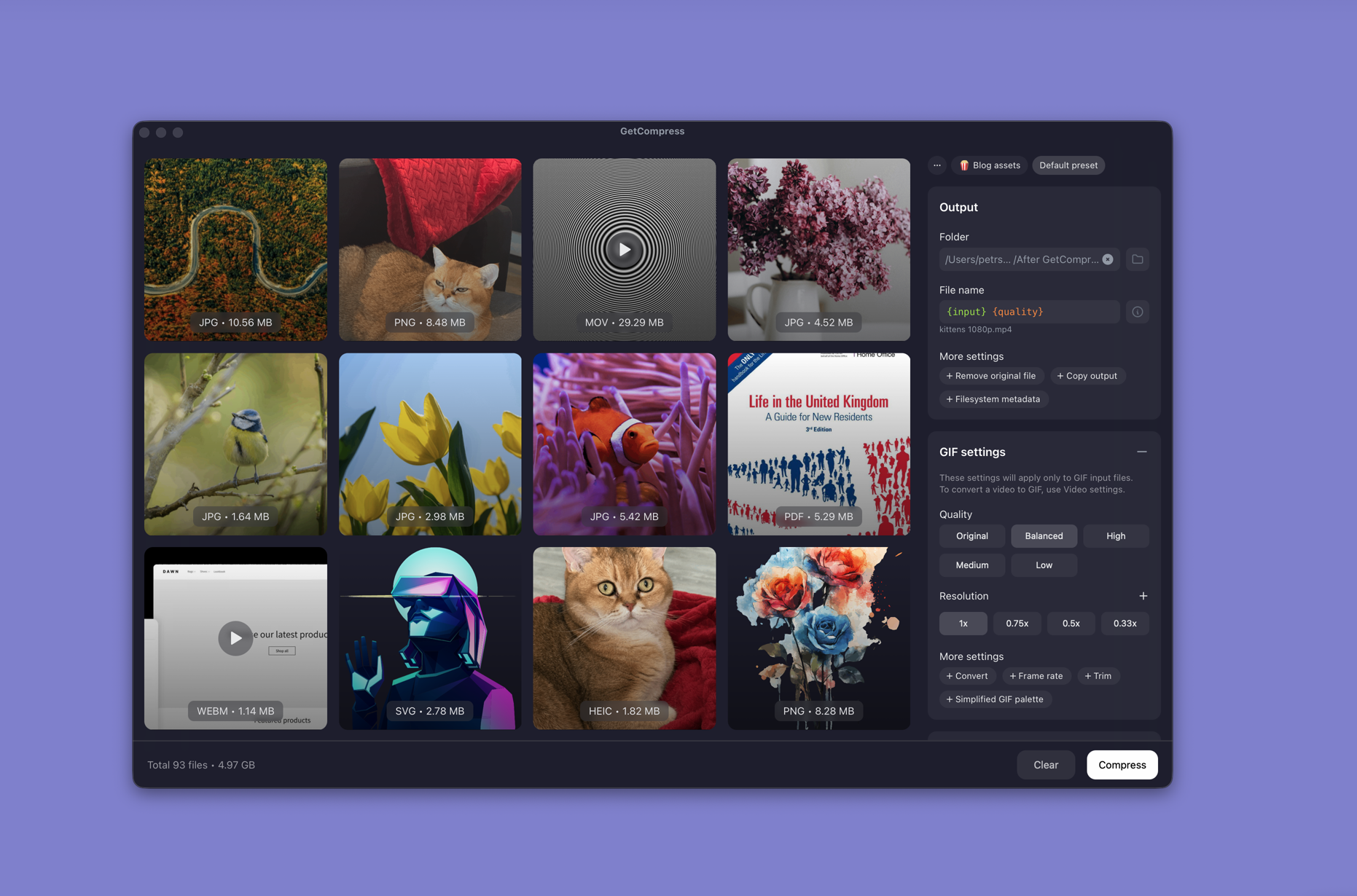
- Drop one MP4 (or MOV) or a whole folder into GetCompress .
- Choose MP3 or AAC (M4A) output.
- Trim intro music or dead air in the preview.
- Set bitrate, then export to a deliverables folder.
Processing stays on your Mac. Save a preset such as “podcast M4A 128k” or “legacy MP3”.
Method 2: Export in QuickTime
Best for: One file when you are fine with M4A.
- Open the MP4 or MOV in QuickTime Player.
- Edit → Trim (⌘T) if you only need part of the recording.
- File → Export As → Audio Only.
You get an M4A file. QuickTime does not set custom bitrates, batch a folder, or export MP3 without another tool.
| QuickTime limit | Workaround |
|---|---|
| One file at a time | Method 1 or 3 |
| No MP3 export | Method 1 or FFmpeg -q:a 2 |
| No bitrate control | FFmpeg -b:a 128k or a GetCompress preset |
Limitation: Fine for one talk. Slow for ten conference recordings.
Method 3: Extract with FFmpeg
Best for: Folder batches and exact bitrate flags.
brew install ffmpegMP3:
ffmpeg -i talk.mp4 -vn -q:a 2 talk.mp3M4A (AAC):
ffmpeg -i talk.mp4 -vn -c:a aac -b:a 128k talk.m4aBatch every MP4 in a folder to MP3:
mkdir audio-out
for f in *.mp4; do
 ffmpeg -i "$f" -vn -q:a 2 "audio-out/${f%.mp4}.mp3"
done
Extract a segment without opening QuickTime:
ffmpeg -ss 00:05:00 -t 00:45:00 -i talk.mp4 -vn -q:a 2 talk-segment.mp3| Flag | Plain meaning |
|---|---|
-vn | Drop the video stream |
-q:a 2 | VBR MP3 quality starting point |
-b:a 128k | Constant AAC bitrate for speech |
Limitation: You maintain the commands. Garbage source audio stays garbage after extraction.
Which method should you use
| Situation | Start here |
|---|---|
| Folder, presets, or MP3 and M4A switching | GetCompress |
| One M4A export | QuickTime |
| Scripts or exact flags | FFmpeg |
When keeping the video is better
If the slides matter for review, keep a compressed MP4 instead of audio-only. See how to compress video on Mac .
GetCompress fits when webinar folders arrive every week and recipients sometimes want M4A, sometimes MP3. Keep the video master when you may need a cut with picture later.
- Convert M4A to MP3 on MacConvert M4A to MP3 on Mac with GetCompress, FFmpeg, or a trimmed QuickTime source. Export MP3 when a form or device rejects AAC.
- Compress Audio Files on MacCompress audio on Mac with GetCompress, QuickTime, or afconvert and FFmpeg. AAC and M4A for podcasts, lectures, and uploads.
- Compress MP3 on MacCompress MP3 on Mac with GetCompress, FFmpeg, or afconvert. Lower bitrate or switch to M4A for email and portal limits.
- Convert MP4 to MP3 on WindowsConvert MP4 to MP3 on Windows with GetCompress, FFmpeg, or Clipchamp. Extract audio as M4A or MP3 for podcasts, lectures, and legacy CMS uploads.