Compress MP3 on Mac: 3 Methods
Compress MP3 on Mac with GetCompress, FFmpeg, or afconvert. Lower bitrate or switch to M4A for email and portal limits.
The portal accepts MP3 but caps each file at 10 MB. Your exported episode is 24 MB at 192 kbps. Lowering bitrate (or switching to mono for voice) is the fix when you cannot change duration. Work from a high-quality master when possible, not an already-crushed MP3 copy.
Three solid routes cover most Mac jobs: GetCompress for folders and presets, FFmpeg for exact re-encode flags, and afconvert when the recipient accepts AAC in M4A.
Method 1: GetCompress
Best for: A season folder of episodes or lecture exports that must share one bitrate preset.
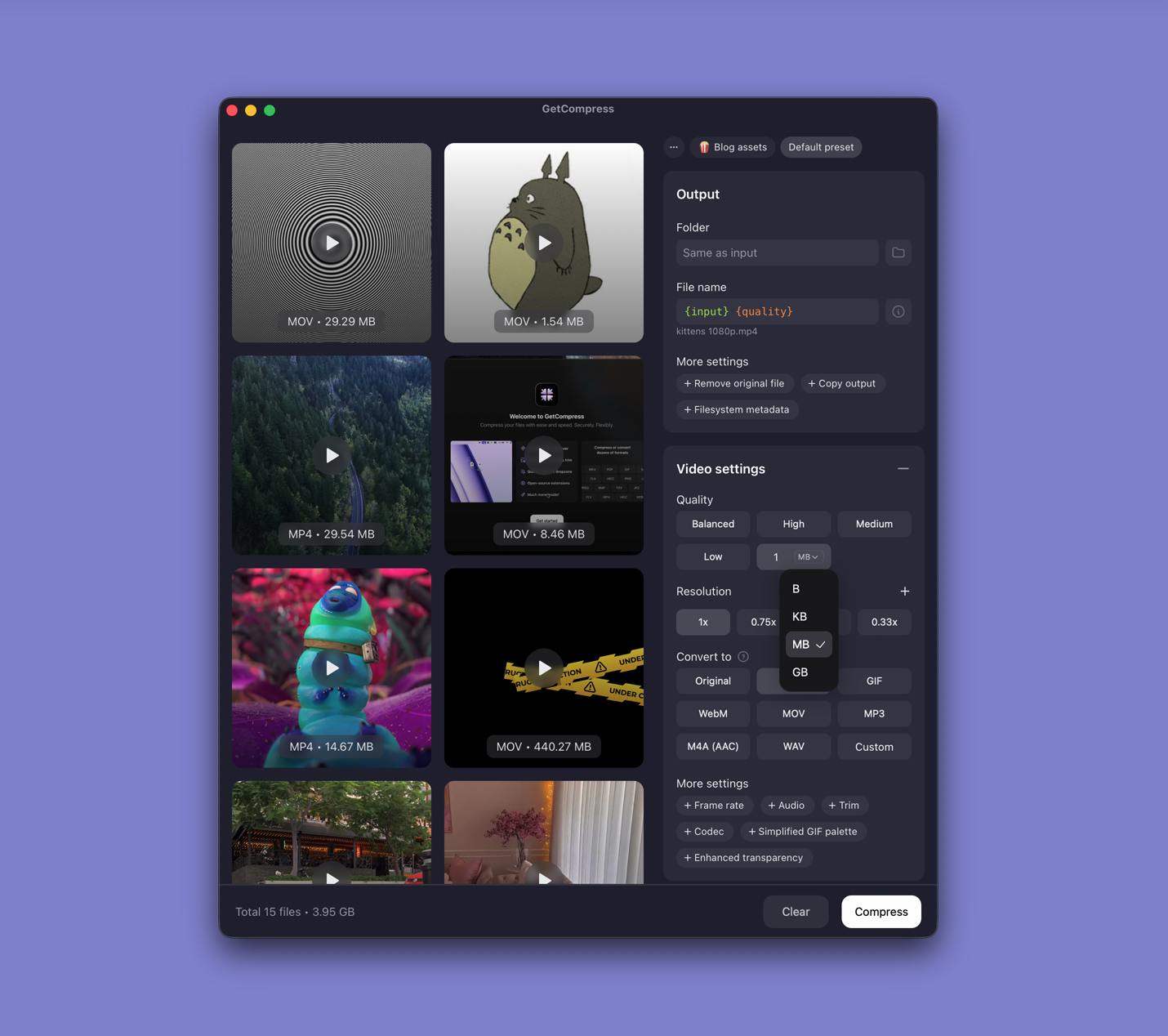
- Open GetCompress and drop MP3 files into the queue.
- Set bitrate (for example 128 kbps speech, or 96 kbps mono for voice).
- Preview a short section, then export.
Processing stays on your Mac. Save presets such as “email MP3 96k mono” versus “music MP3 160k”. When sources are still M4A from QuickTime, convert or compress once instead of M4A → MP3 → smaller MP3 unless the form requires MP3. Exact target file size applies to video only; for audio, pick bitrate and channels.
Method 2: Re-encode with FFmpeg
Best for: Exact flags, VBR, mono voice, and folder scripts.
brew install ffmpegLower bitrate:
ffmpeg -i episode.mp3 -codec:a libmp3lame -b:a 128k episode-128k.mp3VBR (often sounds better at a similar size):
ffmpeg -i episode.mp3 -codec:a libmp3lame -q:a 4 episode-smaller.mp3Mono speech:
ffmpeg -i interview.mp3 -ac 1 -codec:a libmp3lame -b:a 96k interview-mono.mp3Batch a folder:
mkdir mp3-small
for f in *.mp3; do
 ffmpeg -i "$f" -ac 1 -codec:a libmp3lame -b:a 128k "mp3-small/${f%.mp3}-128k.mp3"
done
Listen to thirty seconds before you batch. Sibilance and room noise show problems first.
Limitation: You maintain the commands. Stacking lossy passes on the same MP3 makes speech muddy fast.
Method 3: afconvert to M4A instead
Best for: Recipients who accept AAC, when M4A is smaller than MP3 at similar quality.
afconvert -d aac -f m4af -b 96000 episode.mp3 episode.m4aAsk whether M4A is acceptable before you maintain two formats. For video sources still on disk, extract once at the delivery bitrate via MP4 to MP3 on Mac instead of compressing a high-bitrate MP3 extract.
Limitation: Built-in afconvert does not replace a batch UI for mixed lecture libraries.
Which method should you use
| Situation | Start here |
|---|---|
| Episode folders, recurring LMS uploads, presets | GetCompress |
| Scripts and exact encoder flags | FFmpeg |
| Portal accepts AAC / M4A | afconvert |
| Content type | Bitrate starting point |
|---|---|
| Speech, podcast | 96 to 128 kbps MP3 |
| Music | 160 to 192 kbps |
| Archive master | Keep FLAC or WAV |
See compress audio files on Mac for format basics. Creating MP3 from M4A: M4A to MP3 on Mac . From WAV: WAV to MP3 on Mac .
Avoid double compression
- Keep WAV or FLAC master.
- Export MP3 once at the delivery bitrate.
- Re-encode again only when the portal rejects the first export.
If you only have a low-bitrate MP3, re-encoding lower rarely helps clarity. Trim length or split chapters instead. Use clear names like lecture-128k.mp3 so you do not email the wrong version from Downloads.
When FFmpeg or afconvert is enough
FFmpeg can work when you already script weekly encodes. afconvert is enough for one M4A file when AAC is allowed.
GetCompress also helps when a whole season must match one preset, when teammates who prefer a simple app need preview before publish, or when folder monitoring should catch new exports. It does not replace a podcast editor. Keep masters on archive storage and write compressed deliverables to a separate folder.
- Compress Audio Files on MacCompress audio on Mac with GetCompress, QuickTime, or afconvert and FFmpeg. AAC and M4A for podcasts, lectures, and uploads.
- Convert M4A to MP3 on MacConvert M4A to MP3 on Mac with GetCompress, FFmpeg, or a trimmed QuickTime source. Export MP3 when a form or device rejects AAC.
- Convert WAV to MP3 on MacConvert WAV to MP3 on Mac with GetCompress, afconvert for M4A, or FFmpeg. Keep WAV masters and export smaller share copies for email and uploads.
- Compress MP3 on WindowsCompress MP3 on Windows with GetCompress, FFmpeg, or AAC export. Lower bitrate or switch to M4A for email and portal limits.