Compress MP3 on Windows: 3 Methods
Compress MP3 on Windows with GetCompress, FFmpeg, or AAC export. Lower bitrate or switch to M4A for email and portal limits.
SharePoint rejects the MP3 even though the format is allowed. The file is 18 MB because it was exported at 256 kbps stereo for a one-hour training. Compressing MP3 on Windows means re-encoding at a lower bitrate, switching to mono for voice, or trimming dead air before encode. Start from the best master you have.
Three solid routes cover most Windows jobs: GetCompress for folders and presets, FFmpeg for exact flags, and AAC in M4A when the portal accepts it.
Method 1: GetCompress
Best for: Training libraries or podcast folders that need consistent smaller exports with preview.
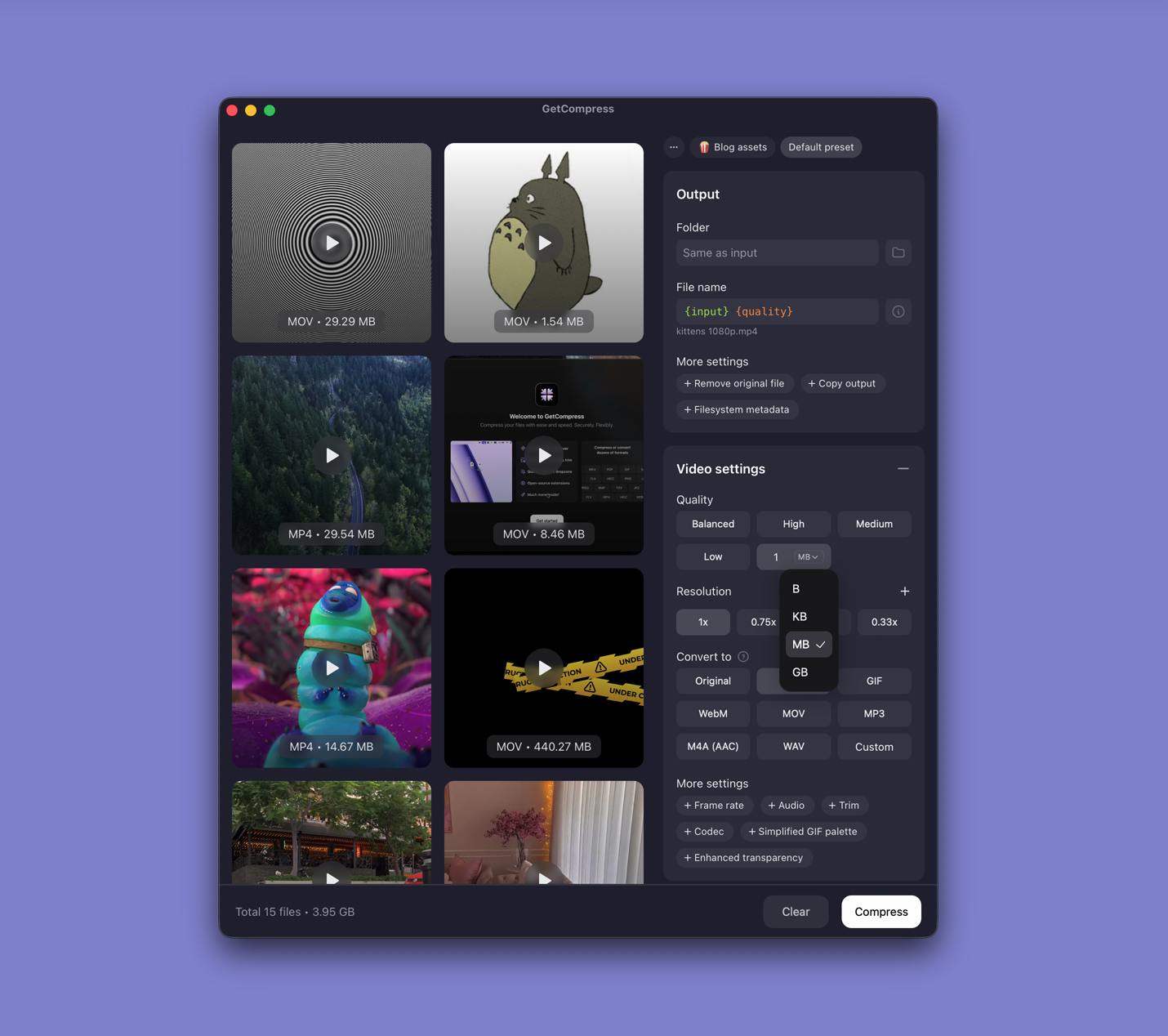
- Open GetCompress and drop MP3 files into the queue.
- Set bitrate (for example 96 kbps mono for SharePoint voice training).
- Preview speech clarity, then export.
Processing stays on your PC. Save a preset such as “SharePoint MP3 96k mono”. When Voice Recorder M4A is the source, compress or convert once instead of M4A → MP3 → smaller MP3 unless MP3 is mandatory. Exact target file size applies to video only; for audio, pick bitrate and channels.
Method 2: Re-encode with FFmpeg
Best for: Exact flags, VBR, mono voice, and PowerShell batches.
winget install --id Gyan.FFmpeg -eLower bitrate:
ffmpeg -i episode.mp3 -codec:a libmp3lame -b:a 128k episode-128k.mp3VBR:
ffmpeg -i episode.mp3 -codec:a libmp3lame -q:a 4 episode-smaller.mp3Mono voice:
ffmpeg -i interview.mp3 -ac 1 -codec:a libmp3lame -b:a 96k interview-mono.mp3Batch a folder:
mkdir mp3-small
Get-ChildItem *.mp3 | ForEach-Object {
 ffmpeg -i $_.Name -ac 1 -codec:a libmp3lame -b:a 128k "mp3-small\$($_.BaseName)-128k.mp3"
}
Listen before you batch. Room noise and cheap laptop mics show artifacting first. Trim long intro silence in Clipchamp when the source is still video.
Limitation: You maintain the commands. Stacking lossy passes on the same MP3 makes speech muddy fast.
Method 3: M4A when AAC is accepted
Best for: Portals that accept M4A, when AAC beats MP3 at the same size.
ffmpeg -i episode.mp3 -c:a aac -b:a 96k episode.m4aConfirm acceptance before you maintain parallel formats. See M4A to MP3 on Windows for the reverse path. For video sources, extract once at the target bitrate via MP4 to MP3 on Windows .
Limitation: Not useful when the CMS lists MP3 only.
Which method should you use
| Situation | Start here |
|---|---|
| LMS libraries, recurring uploads, presets | GetCompress |
| Scripts and exact encoder flags | FFmpeg |
| Portal accepts AAC / M4A | Method 3 |
| Content | Bitrate starting point |
|---|---|
| Speech | 96 to 128 kbps |
| Music | 160 to 192 kbps |
| Master archive | Keep WAV or FLAC |
See compress audio files on Windows . From M4A: M4A to MP3 on Windows . From WAV: WAV to MP3 on Windows .
Avoid double compression
- Keep WAV or FLAC master untouched.
- One MP3 export at delivery bitrate.
- Second pass only when upload still fails.
Use clear names like lecture-128k.mp3 so you do not email the wrong version from Downloads. Never compress the only copy; write -128k or -small suffixes so originals stay obvious in File Explorer.
When FFmpeg is enough
FFmpeg can work when you already script weekly encodes and someone can maintain the flags.
GetCompress also helps when a whole training library must match one preset, when teammates need preview before publish, or when folder monitoring should catch new exports. It does not replace a DAW. Keep masters on archive storage and write compressed deliverables to a separate folder.
- Compress Audio Files on WindowsCompress audio on Windows with GetCompress, Clipchamp, or FFmpeg. Export M4A or MP3 for podcasts, lectures, and upload limits.
- Convert M4A to MP3 on WindowsConvert M4A to MP3 on Windows with GetCompress, FFmpeg, or a trimmed Clipchamp source. Export MP3 when a form or device rejects AAC.
- Convert WAV to MP3 on WindowsConvert WAV to MP3 on Windows with GetCompress or FFmpeg. Keep WAV masters and export smaller share copies for email, LMS, and SharePoint uploads.
- Compress MP3 on MacCompress MP3 on Mac with GetCompress, FFmpeg, or afconvert. Lower bitrate or switch to M4A for email and portal limits.