Convert MP4 to MP3 on Windows: 3 Methods
Convert MP4 to MP3 on Windows with GetCompress, FFmpeg, or Clipchamp. Extract audio as M4A or MP3 for podcasts, lectures, and legacy CMS uploads.
You recorded a webinar, training session, or remote interview on video. The deliverable is audio only: a talk track for editing, a clip for transcription, or an MP3 for a legacy CMS. Loom exports, Teams recordings, and conference folders often pile up as MP4 when you only need the spoken track. Extract locally so sensitive recordings stay on your PC.
MP3 vs M4A from video
M4A with AAC is a solid default on modern Windows. Use MP3 when an older player or upload form still requires it.
| Format | Best when |
|---|---|
| M4A (AAC) | Modern podcast hosts and players |
| MP3 | Old LMS embeds, car exports, forms that list MP3 only |
| Source | Starting bitrate |
|---|---|
| Screen recording of a talk | 128 kbps |
| Music-heavy clip | 192 kbps |
| Noisy laptop mic | Keep 128 kbps; fix capture next time |
If you already have M4A and only need MP3, see M4A to MP3 on Windows . For shrinking audio after extraction, see compress audio files on Windows .
Method 1: GetCompress
Best for: Recordings folders, consistent bitrate, and trim-before-extract in one queue.
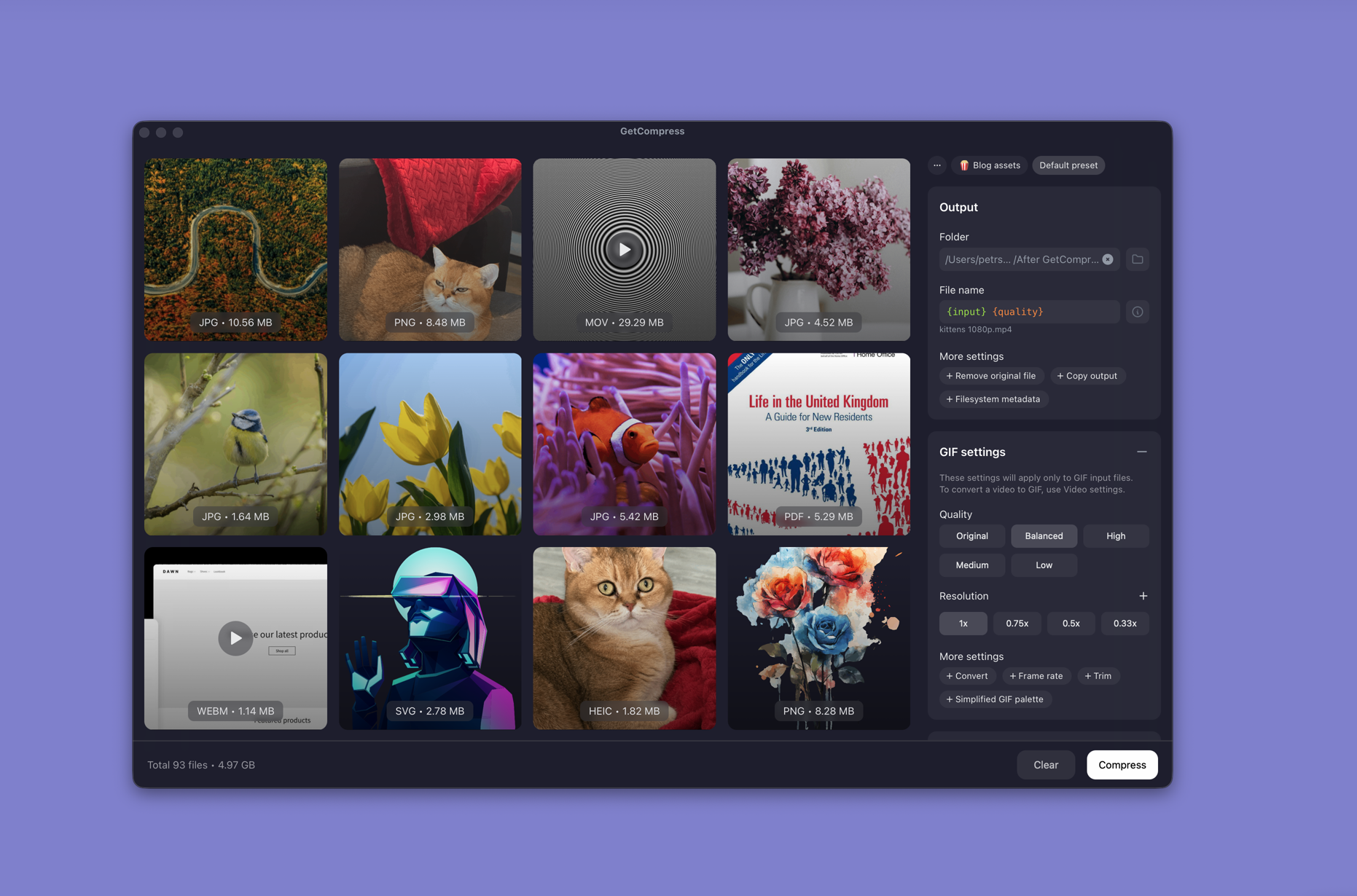
- Drop one MP4 (or MOV) or a whole folder into GetCompress .
- Choose MP3 or AAC (M4A) output.
- Trim intro slides or dead air in the preview.
- Set bitrate, then export to a deliverables folder.
Processing stays on your PC. Save a preset such as “weekly standup M4A 128k” or “legacy MP3”.
Method 2: Extract with FFmpeg
Best for: PowerShell batches and exact bitrate flags.
winget install --id Gyan.FFmpeg -eMP3:
ffmpeg -i talk.mp4 -vn -q:a 2 talk.mp3M4A (AAC):
ffmpeg -i talk.mp4 -vn -c:a aac -b:a 128k talk.m4aBatch every MP4 in a folder to MP3:
mkdir audio-out
Get-ChildItem *.mp4 | ForEach-Object {
 ffmpeg -i $_.Name -vn -q:a 2 "audio-out\$($_.BaseName).mp3"
}
Extract a segment without opening Clipchamp:
ffmpeg -ss 00:05:00 -t 00:45:00 -i talk.mp4 -vn -q:a 2 talk-segment.mp3| Symptom | Likely fix |
|---|---|
| Output silent | Source had no audio track; check with ffprobe |
| Distorted speech | Source clipped at capture |
| Huge MP3 | Use M4A or a lower -q:a for speech |
Limitation: You maintain the scripts. Trim long Q&A silence before you archive room tone as separate files.
Method 3: Clipchamp for one file
Best for: A single clip with a visual trim.
- Open the MP4 in Clipchamp.
- Trim the timeline if needed.
- Export Audio only when the option appears.
Clipchamp does not expose bitrate control the way FFmpeg does. When a host specifies “128 kbps MP3”, use Method 1 or 2 instead of guessing in the export dialog.
Limitation: Opening ten conference files one by one is slower than a queue or PowerShell loop.
Which method should you use
| Situation | Start here |
|---|---|
| Folder, presets, or MP3 and M4A switching | GetCompress |
| Scripts or exact flags | FFmpeg |
| One visual trim | Clipchamp, then Method 1 or 2 if you need MP3 bitrate control |
When keeping the video is better
If the slides matter for review, keep a compressed MP4 instead of audio-only. See how to compress video on Windows .
GetCompress fits when training and webinar folders arrive every week and recipients sometimes want M4A, sometimes MP3. Keep the video master when you may need a cut with picture later.
- Convert M4A to MP3 on WindowsConvert M4A to MP3 on Windows with GetCompress, FFmpeg, or a trimmed Clipchamp source. Export MP3 when a form or device rejects AAC.
- Compress Audio Files on WindowsCompress audio on Windows with GetCompress, Clipchamp, or FFmpeg. Export M4A or MP3 for podcasts, lectures, and upload limits.
- Compress MP3 on WindowsCompress MP3 on Windows with GetCompress, FFmpeg, or AAC export. Lower bitrate or switch to M4A for email and portal limits.
- Convert MP4 to MP3 on MacConvert MP4 to MP3 on Mac with GetCompress, QuickTime, or FFmpeg. Extract audio as M4A by default, or MP3 when a legacy tool requires it.