Compress Audio Files on Windows: 3 Methods
Compress audio on Windows with GetCompress, Clipchamp, or FFmpeg. Export M4A or MP3 for podcasts, lectures, and upload limits.
A WAV lecture can be hundreds of megabytes. Course portals, podcast hosts, and email forms want something smaller. The usual fix is a lossy export (AAC in M4A, or MP3) at a bitrate that matches speech or music, while you keep the master untouched.
Three solid routes cover most Windows jobs: GetCompress for local batches and audio from video, Clipchamp for one clip, and FFmpeg when you want exact flags or a folder script.
Method 1: GetCompress
Best for: A folder of lectures or podcasts, or extracting audio from MP4 and MOV recordings with a preset you can reuse.
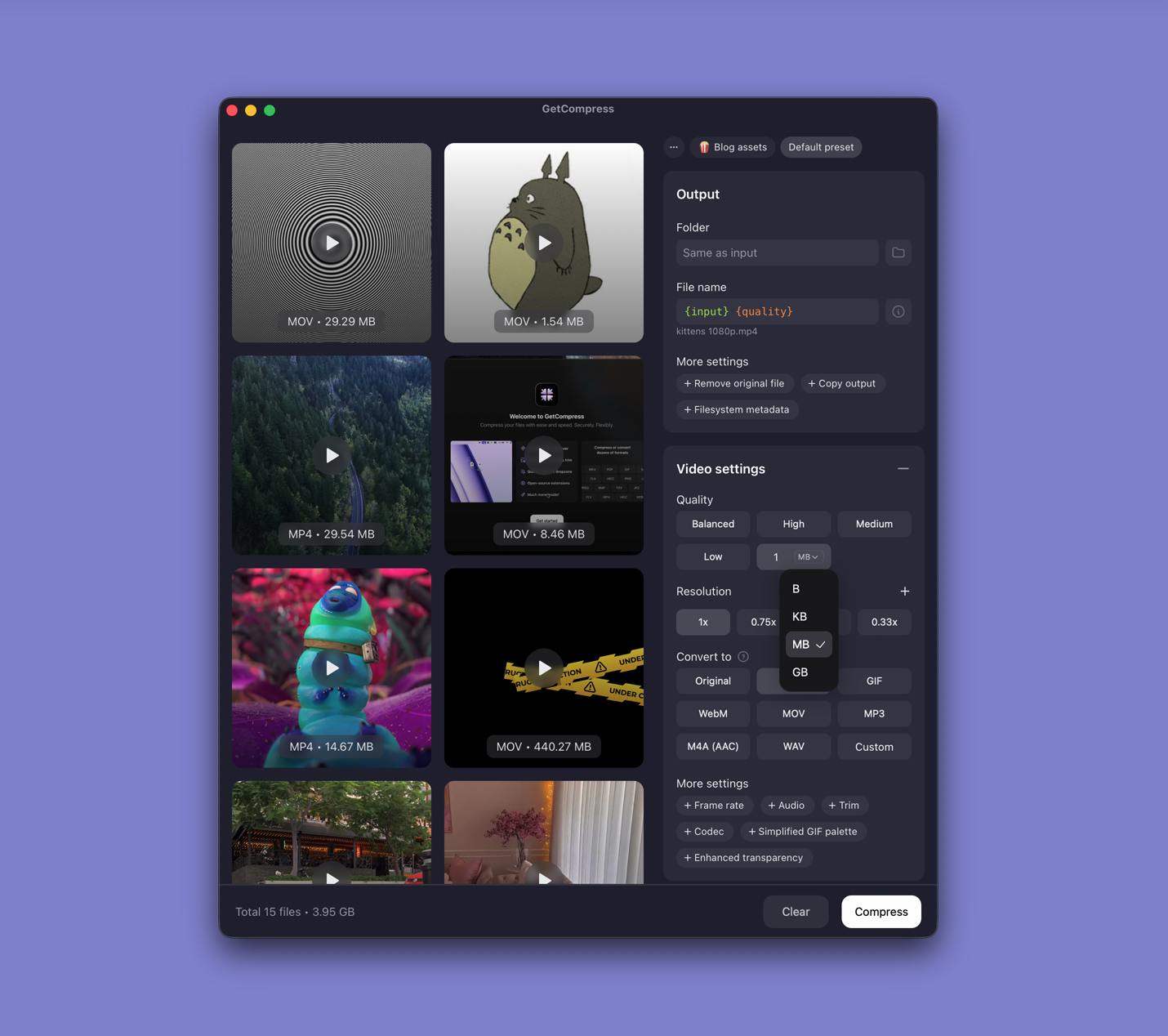
- Open GetCompress and drop WAV, M4A, MP3, or video files into the queue.
- Choose AAC (M4A) or MP3 and a bitrate (for example 128 kbps for speech).
- Export, then drag the result into Outlook, Teams, or the upload field.
Processing stays on your PC. Save a preset such as “speech 128k mono” so the next recording day takes a few clicks. For MP3-only portals, see compress MP3 on Windows .
Method 2: Clipchamp for one file
Best for: One MP4 lecture when you only need the soundtrack.
- Open the video in Clipchamp.
- Trim the timeline if needed.
- Export Audio only when that option appears in your version.
Clipchamp is fine for a single clip. It is awkward for dozens of WAV masters, and account or project storage rules may not suit internal interviews.
Limitation: No reliable batch queue for a full course folder.
Method 3: FFmpeg in PowerShell
Best for: Repeatable bitrates, WAV to M4A, and extracting audio from video in a script.
Install FFmpeg with winget:
winget install --id Gyan.FFmpeg -eWAV to M4A:
ffmpeg -i lecture.wav -c:a aac -b:a 128k lecture.m4aStrip audio from video:
ffmpeg -i video.mp4 -vn -c:a aac -b:a 128k audio.m4aBatch a folder of MP4 files:
mkdir audio-out
Get-ChildItem *.mp4 | ForEach-Object {
 ffmpeg -i $_.Name -vn -c:a aac -b:a 128k "audio-out\$($_.BaseName).m4a"
}
For MP3 output, use -c:a libmp3lame -b:a 128k. Listen to thirty seconds before you batch fifty files.
Limitation: You maintain the commands. Stereo music at 128 kbps can sound harsh; bump those files to 160 or 192 kbps.
Which method should you use
| Situation | Start here |
|---|---|
| Folder of lectures, recurring exports, or audio from video | GetCompress |
| One Clipchamp or screen recording | Clipchamp |
| Scripts, Task Scheduler, or exact encoder flags | FFmpeg |
If the blocker is email size on a video that still needs picture, compress the video instead: how to compress video on Windows . Typical email caps are outlined in email attachment size limits .
Formats and bitrates that fit
| Format | Typical use | Rough size for 30 min speech |
|---|---|---|
| WAV | Editing master | 300 MB or more |
| M4A / AAC | Sharing on Windows and most platforms | 15 to 30 MB at 128 kbps |
| MP3 | Legacy CMS and forms | Similar to AAC at the same bitrate |
Spoken word often works at 96 to 128 kbps AAC. Music may need 160 to 192 kbps. M4A and MP3 can carry title, artist, and album art; review File Explorer properties before you share sensitive interviews. Prefer local tools over browser upload forms when the recording is confidential. See are online file compressors safe on Windows .
When Clipchamp or FFmpeg is enough
Clipchamp is enough for one soundtrack export. FFmpeg can work when you already script weekly encodes and someone can maintain the flags.
GetCompress also helps when recordings pile up every week, when you extract audio and compress video in the same queue, or when teammates who prefer a simple app need a saved preset instead of PowerShell. It does not replace Audacity, Reaper, or a podcast host’s loudness tools. Keep WAV or FLAC masters on archive storage and write delivery copies to a separate folder.
- Compress MP3 on WindowsCompress MP3 on Windows with GetCompress, FFmpeg, or AAC export. Lower bitrate or switch to M4A for email and portal limits.
- Convert MP4 to MP3 on WindowsConvert MP4 to MP3 on Windows with GetCompress, FFmpeg, or Clipchamp. Extract audio as M4A or MP3 for podcasts, lectures, and legacy CMS uploads.
- Convert WAV to MP3 on WindowsConvert WAV to MP3 on Windows with GetCompress or FFmpeg. Keep WAV masters and export smaller share copies for email, LMS, and SharePoint uploads.
- Compress Audio Files on MacCompress audio on Mac with GetCompress, QuickTime, or afconvert and FFmpeg. AAC and M4A for podcasts, lectures, and uploads.