Convert WAV to MP3 on Windows: 3 Methods
Convert WAV to MP3 on Windows with GetCompress or FFmpeg. Keep WAV masters and export smaller share copies for email, LMS, and SharePoint uploads.
A USB field recorder copied forty WAV files to your PC. Each lecture can sit near hundreds of megabytes. The LMS upload form wants something smaller and lists MP3 as an accepted type.
WAV stays the edit master. MP3 is the delivery copy. Convert locally, keep the master, and test one file before you batch the rest.
A one-hour WAV lecture at 44.1 kHz stereo is often around 600 MB. At 128 kbps MP3 mono, the same content often lands under 60 MB. Treat those figures as planning ranges; sample rate and channel count change the result.
WAV vs MP3 on Windows
WAV stores uncompressed audio. MP3 uses lossy compression and opens in almost every Windows workflow. Prefer M4A when the portal accepts it. Use MP3 when the form lists MP3 only.
| Format | Typical role | Size |
|---|---|---|
| WAV | Master, Audacity project | Very large |
| M4A (AAC) | Modern share default | Medium |
| MP3 | Legacy CMS, email, LMS | Medium |
| Use case | Bitrate starting point |
|---|---|
| Mono voice memo | 128 kbps MP3 |
| Stereo music | 192 kbps or VBR q2 |
| Still too large | compress MP3 on Windows |
See compress audio files on Windows for overview. For FLAC archives, see FLAC to MP3 on Windows .
Never overwrite WAV masters. Export to a separate folder such as deliverables\mp3\.
Method 1: GetCompress
Best for: Semester folders, interview archives, and reusable LMS presets.
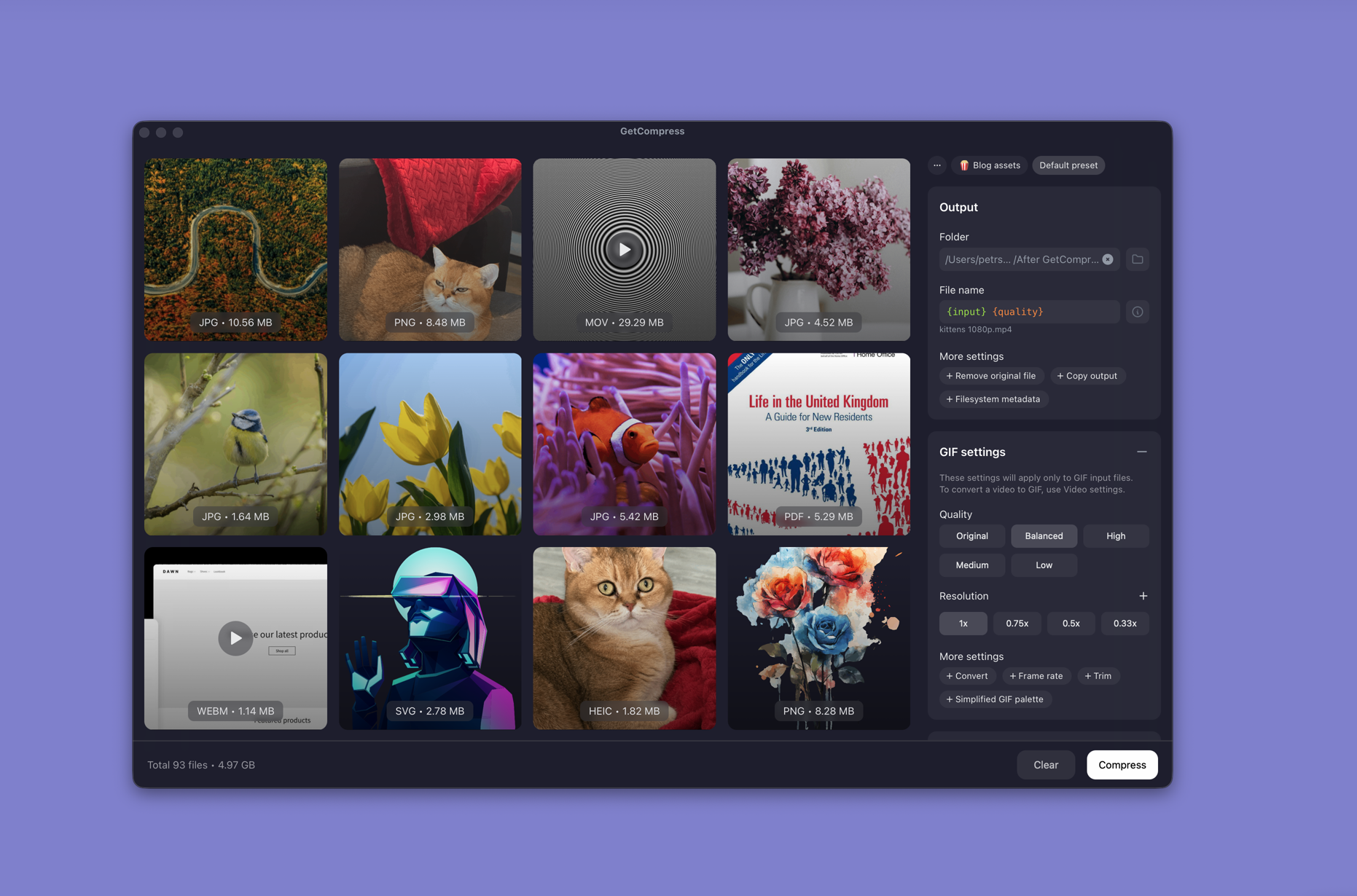
- Open GetCompress and drop WAV files or a folder into the queue.
- Choose MP3 (or M4A when the portal accepts AAC), set bitrate, and prefer mono for voice-only recordings when size matters.
- Preview a short segment, then export to a deliverables folder.
Processing stays on your PC. Save a preset such as “LMS MP3 128k mono” for the next upload week. Folder monitoring can convert new WAV files when they land in an ingest folder.
Method 2: FFmpeg in PowerShell
Best for: Exact flags, mono voice, and scripted batches.
winget install --id Gyan.FFmpeg -eSingle file:
ffmpeg -i lecture.wav -codec:a libmp3lame -q:a 2 lecture.mp3Constant bitrate when a rubric lists an exact number:
ffmpeg -i lecture.wav -codec:a libmp3lame -b:a 128k lecture.mp3Mono voice folder:
mkdir mp3-out
Get-ChildItem *.wav | ForEach-Object {
 ffmpeg -i $_.Name -ac 1 -codec:a libmp3lame -b:a 128k "mp3-out\$($_.BaseName)-128k.mp3"
}| Symptom | Likely fix |
|---|---|
| Distorted output | Source clipped; fix gain in the editor first |
| Huge MP3 | Use mono -ac 1 for voice |
| Wrong speed | Check sample rate; try -ar 44100 |
Listen to thirty seconds before you batch. Sibilance and room noise show problems first.
Limitation: You maintain the scripts yourself.
Method 3: Check Voice Recorder and Media Player first
Best for: Avoiding unnecessary WAV conversion.
Voice Recorder on many Windows setups saves M4A by default, not WAV. When you already have M4A, skip this guide and use M4A to MP3 on Windows if MP3 is required.
Media Player plays WAV but does not export MP3. Paint and Photos are not audio tools. For share copies, use Method 1 or 2.
Limitation: Playback only. No batch export path.
Which method should you use
| Situation | Start here |
|---|---|
| Recurring batches and presets | GetCompress |
| Scripts and exact bitrate flags | FFmpeg |
| Files are already M4A | M4A to MP3 on Windows |
If the source is still video on disk, MP4 to MP3 on Windows may be faster than converting a derived WAV.
When a simpler tool is enough
FFmpeg is enough for a one-off lecture folder if you already keep the PowerShell loop nearby. Media Player is enough only to confirm the WAV plays.
GetCompress also covers dozens of recorder files, one LMS bitrate every week, preview before publishing, or folder monitoring on an ingest directory. Keep WAV masters on archive storage. If a portal rejects the first upload, change bitrate once in the saved preset and re-export from the master, not from the previous MP3.
- Compress Audio Files on WindowsCompress audio on Windows with GetCompress, Clipchamp, or FFmpeg. Export M4A or MP3 for podcasts, lectures, and upload limits.
- Convert FLAC to MP3 on WindowsConvert FLAC to MP3 on Windows with GetCompress or FFmpeg. Keep FLAC masters; export MP3 for legacy players and uploads.
- Convert M4A to MP3 on WindowsConvert M4A to MP3 on Windows with GetCompress, FFmpeg, or a trimmed Clipchamp source. Export MP3 when a form or device rejects AAC.
- Convert WAV to MP3 on MacConvert WAV to MP3 on Mac with GetCompress, afconvert for M4A, or FFmpeg. Keep WAV masters and export smaller share copies for email and uploads.