Convert M4A to MP3 on Windows: 3 Methods
Convert M4A to MP3 on Windows with GetCompress, FFmpeg, or a trimmed Clipchamp source. Export MP3 when a form or device rejects AAC.
Phone sync folders, Voice Recorder saves, and some Clipchamp audio exports land as M4A. LMS forms, older WordPress embeds, and USB sticks for older cars often still want MP3. Convert on your PC, keep the M4A masters, and write MP3 deliverables to a separate folder.
M4A vs MP3
| M4A (AAC) | MP3 | |
|---|---|---|
| Common source | Voice Recorder, Clipchamp, phone sync | Legacy portals, older hardware |
| Plays in Media Player | Yes | Yes |
| When to use | Default when the form allows AAC | Only when something lists MP3 only |
| Source | Starting MP3 setting |
|---|---|
| Voice note | 128 kbps |
| Music clip | 192 kbps or VBR -q:a 2 |
| Screen recording audio | 128 kbps after trim |
If you still have video, extract first: MP4 to MP3 on Windows . If the MP3 is still too large, see compress MP3 on Windows .
Method 1: GetCompress
Best for: Sync folders after travel, meeting exports, and a bitrate preset you reuse.
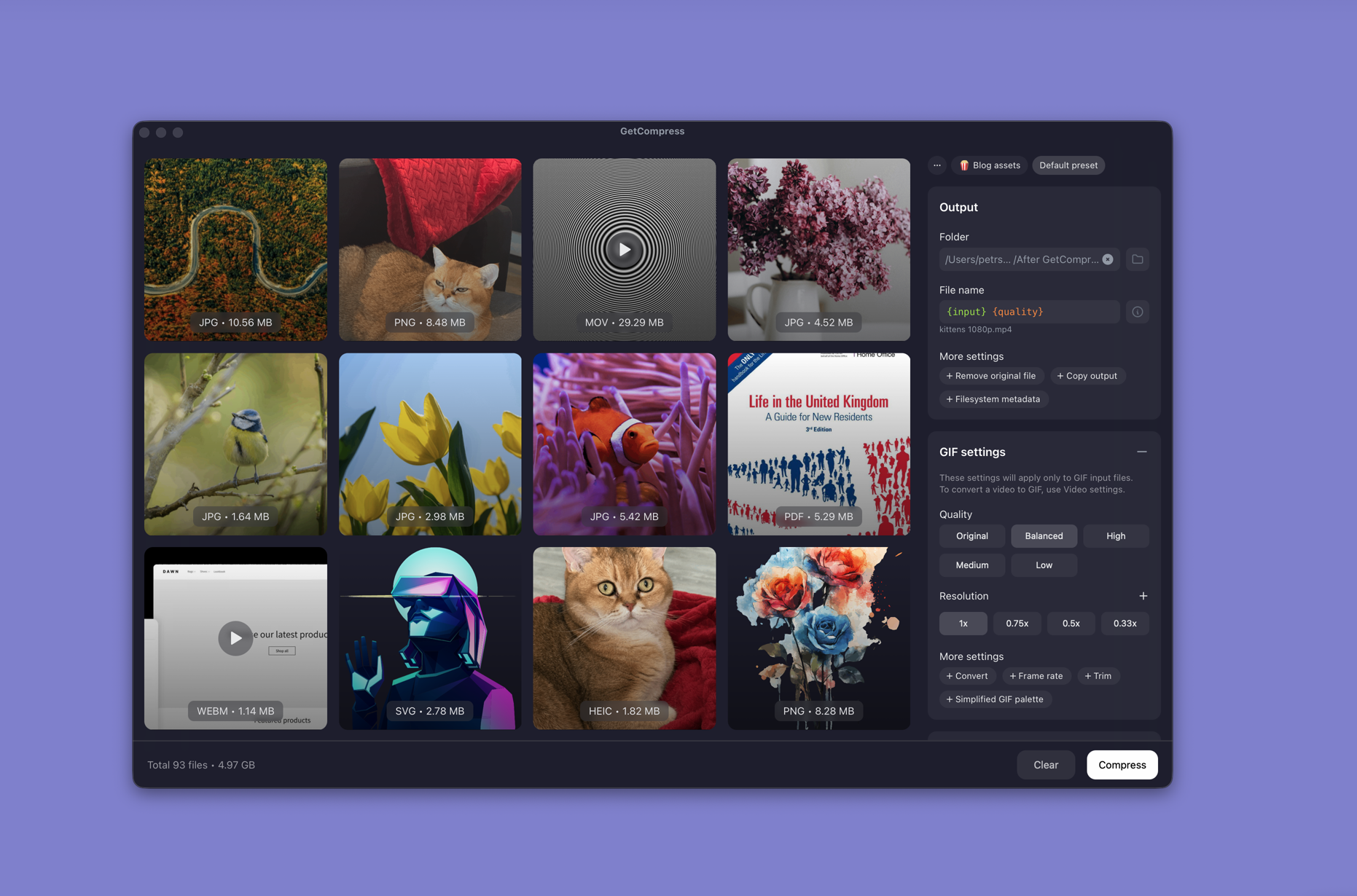
- Drop one M4A or a whole folder into GetCompress .
- Choose MP3 output and set bitrate or quality.
- Trim dead air in the preview when needed.
- Export to
deliverables\mp3\. Leave the M4A masters alone.
Processing stays on your PC. Save a preset such as “CMS MP3 128k” for weekly uploads.
Method 2: Convert with FFmpeg
Best for: PowerShell batches, constant bitrate specs, and scripts.
winget install --id Gyan.FFmpeg -eSingle file:
ffmpeg -i memo.m4a -codec:a libmp3lame -q:a 2 memo.mp3Constant bitrate:
ffmpeg -i memo.m4a -codec:a libmp3lame -b:a 128k memo.mp3Batch a folder:
mkdir mp3-out
Get-ChildItem *.m4a | ForEach-Object {
 ffmpeg -i $_.Name -codec:a libmp3lame -q:a 2 "mp3-out\$($_.BaseName).mp3"
}
Mono voice when the source is a single mic:
ffmpeg -i memo.m4a -ac 1 -codec:a libmp3lame -b:a 128k memo.mp3Listen to thirty seconds before you batch. Room noise shows artifacts first.
Limitation: You maintain the scripts. Name outputs clearly so you do not email the wrong file from Downloads.
Method 3: Trim in Clipchamp first
Best for: One long recording with intro silence.
- Open the M4A (or the source video) in Clipchamp.
- Trim the timeline.
- Export audio if you need a shorter M4A intermediate.
- Convert with Method 1 or 2.
Clipchamp is fine for one trim. Opening fifty memos one by one is slower than a GetCompress queue or an FFmpeg loop.
Limitation: No bulk MP3 bitrate control across a sync folder.
Which method should you use
| Situation | Start here |
|---|---|
| Folder of memos or a reusable bitrate | GetCompress |
| Scripts or exact FFmpeg flags | FFmpeg |
| One long clip with dead air | Trim in Clipchamp, then Method 1 or 2 |
When M4A is enough
If Media Player, Teams, and the upload form accept AAC, keep M4A. MP3 only helps when something downstream still rejects it.
GetCompress fits when the same portal asks for MP3 every week or when a phone sync folder fills after travel. For shrinking audio without forcing MP3, see compress audio files on Windows .
- Convert MP4 to MP3 on WindowsConvert MP4 to MP3 on Windows with GetCompress, FFmpeg, or Clipchamp. Extract audio as M4A or MP3 for podcasts, lectures, and legacy CMS uploads.
- Compress Audio Files on WindowsCompress audio on Windows with GetCompress, Clipchamp, or FFmpeg. Export M4A or MP3 for podcasts, lectures, and upload limits.
- Compress MP3 on WindowsCompress MP3 on Windows with GetCompress, FFmpeg, or AAC export. Lower bitrate or switch to M4A for email and portal limits.
- Convert M4A to MP3 on MacConvert M4A to MP3 on Mac with GetCompress, FFmpeg, or a trimmed QuickTime source. Export MP3 when a form or device rejects AAC.