Convert GIF to WebP on Windows: 3 Methods
Convert GIF to WebP on Windows with GetCompress, FFmpeg, or Clipchamp when the source is still video. Smaller animated assets for the web.
Your landing page hero animation is a multi-megabyte GIF. The same loop as animated WebP is often much smaller with smoother gradients. Modern browsers load animated WebP well. Keep a GIF or MP4 fallback when a CMS or ticket form still requires it.
Why animated WebP instead of GIF
GIF caps at 256 colors per frame. Animated WebP supports lossy and lossless modes and typically produces smaller files at similar visual quality.
| Factor | GIF | Animated WebP |
|---|---|---|
| Color depth | 256 colors per frame | Full color (lossy or lossless) |
| Typical web size | Large for gradients | Often much smaller |
| Browser support | Universal | Wide on modern browsers |
Use animated WebP when page weight hurts. Keep GIF when a third-party tool accepts only GIF. For UI demos, MP4 is often better than either. See compress GIFs on Windows when you must stay in GIF.
Method 1: GetCompress
Best for: Preview, trim, width presets, and batch export without maintaining PowerShell recipes per project.
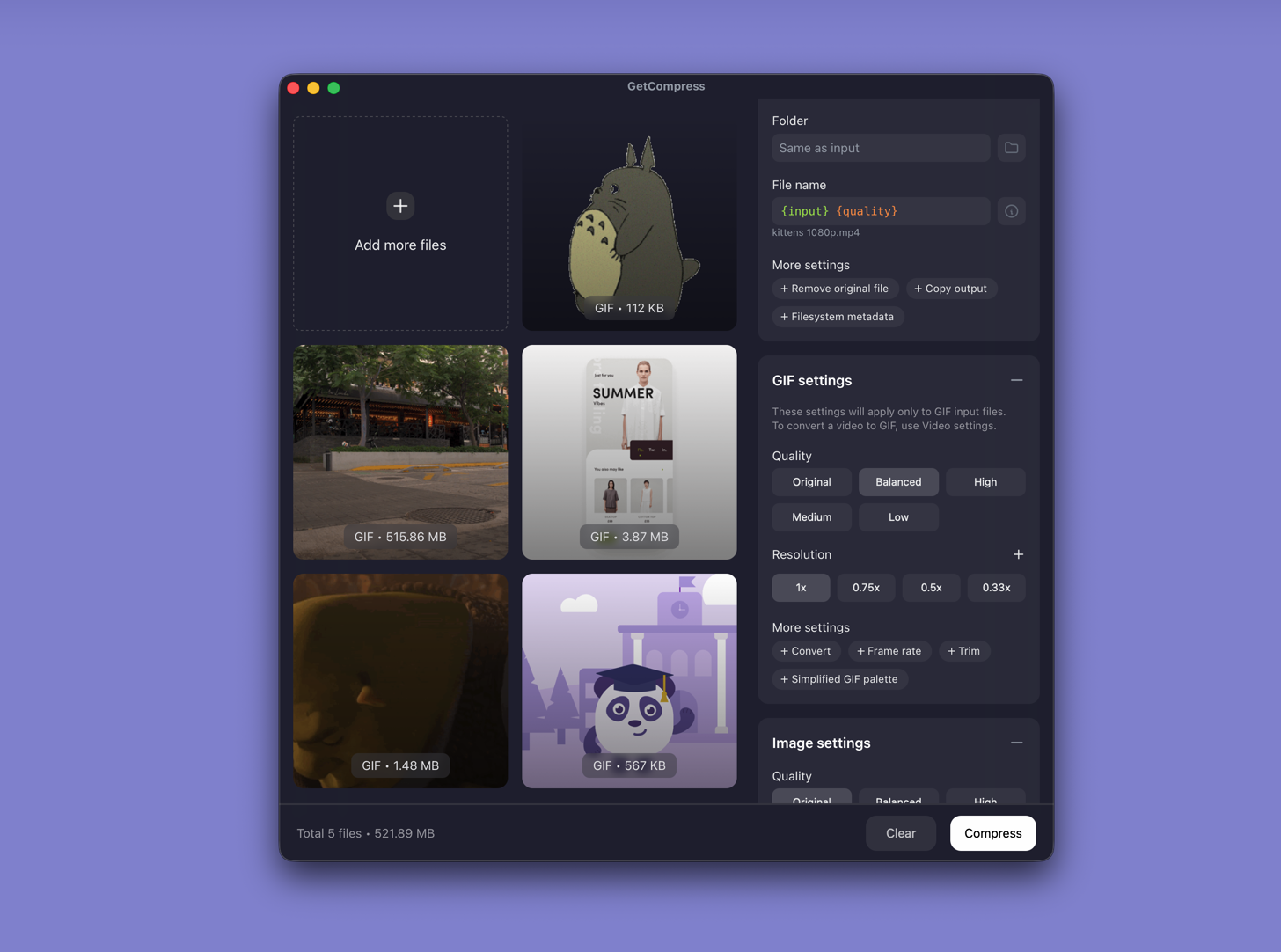
- Drop an existing GIF, or a MOV/MP4 source, into GetCompress .
- Trim idle frames in the preview.
- Choose WebP output, set width (for example 640 or 800 px) and quality.
- Export; keep the original GIF or video master untouched.
Processing stays on your PC. Save a preset such as “marketing WebP 640 medium” so you can reuse it next time.
Method 2: Convert GIF to WebP with FFmpeg
Best for: Scripts and exact libwebp flags.
Install FFmpeg with winget if needed:
winget install --id Gyan.FFmpeg -eLossy animated WebP:
ffmpeg -i loop.gif -vcodec libwebp -filter:v "fps=12,scale=640:-1" -lossless 0 -compression_level 6 -q:v 80 -loop 0 loop.webpLossless (larger file, flat colors):
ffmpeg -i icon-loop.gif -vcodec libwebp -lossless 1 -loop 0 icon-loop.webpBatch every GIF in a folder:
mkdir webp-out
Get-ChildItem *.gif | ForEach-Object {
 ffmpeg -i $_.Name -vcodec libwebp -filter:v "fps=12,scale=640:-1" -lossless 0 -q:v 80 -loop 0 "webp-out\$($_.BaseName).webp"
}| Flag | Smaller file | Better quality |
|---|---|---|
fps | 8 to 10 | 12 to 15 |
scale width | 480 to 640 | 800 to 960 |
-q:v (lossy) | 70 to 75 | 80 to 85 |
Limitation: You maintain the commands yourself. Keep the MP4 or MOV master when you have it.
Method 3: Start from video in Clipchamp
Best for: When the source is still a screen recording, not a finished GIF.
- Open the clip in Clipchamp.
- Trim the timeline.
- Export MP4 when the destination allows video, or convert to GIF/WebP only if required.
See video to GIF on Windows when GIF is required.
Limitation: Clipchamp does not export animated WebP directly.
Which method should you use
| Situation | Start here |
|---|---|
| Recurring hero loops, preview, presets | GetCompress |
| Scripts or exact flags | FFmpeg |
| Source is still video | Clipchamp first; prefer MP4 |
When FFmpeg alone is enough
FFmpeg is enough for a one-off convert when you already know the flags.
GetCompress also helps when design sends a folder of oversized GIF files often, when you want trim and preview before deploy, and when processing must stay local. Prefer MP4 for motion docs when quality stays poor at a small animated size. For Mac, see GIF to WebP on Mac .
- Compress GIFs on WindowsCompress GIFs on Windows with GetCompress, Clipchamp MP4 export, or FFmpeg. Trim, shrink width, or switch to MP4 when the tool allows video.
- Convert Video to GIF on WindowsConvert MOV or MP4 to GIF on Windows with GetCompress, Clipchamp (for MP4), or FFmpeg. Trim first, keep width low, and ask if video is allowed.
- Convert PNG to WebP on WindowsConvert PNG to WebP on Windows with GetCompress, cwebp, or a Photos resize first. Keep a JPEG or PNG fallback for older browsers.
- Convert GIF to WebP on MacConvert GIF to WebP on Mac with GetCompress, FFmpeg, or QuickTime when the source is still video. Smaller animated assets for the web.