Make GIF from Photos on Windows: 3 Methods
Make a GIF from photos on Windows with GetCompress, Photos prep, or FFmpeg. Sort frames, set fps, resize, and palette-encode for Teams loops.
Design hands you a short PNG or JPEG sequence for a storyboard, UI state flip, or before/after loop. The Teams thread wants a GIF, not a PDF sheet. You need matching frame sizes, a readable fps, and a palette encode so gradients do not band. Keep unreleased product shots on your PC instead of uploading them to a random converter.
When a photo GIF makes sense
| Good fit | Better as something else |
|---|---|
| 5 to 15 frame storyboard | MP4 slideshow with music |
| UI state sequence | Prototype video from a design tool |
| Short flipbook | Long photo album |
| Frame count | Typical fps |
|---|---|
| 3 to 5 | 2 to 4 (hold each shot) |
| 6 to 12 | 4 to 8 |
| 12+ | 8 to 10 max |
GIF caps at 256 colors per frame. Photo skin tones and skies band quickly if you skip the palette step. For motion that already exists as video, see video to GIF on Windows . To shrink a finished GIF, see compress GIFs on Windows .
Method 1: GetCompress
Best for: Previewing the loop, fixing frame order, and exporting a width/fps preset without PowerShell globs.
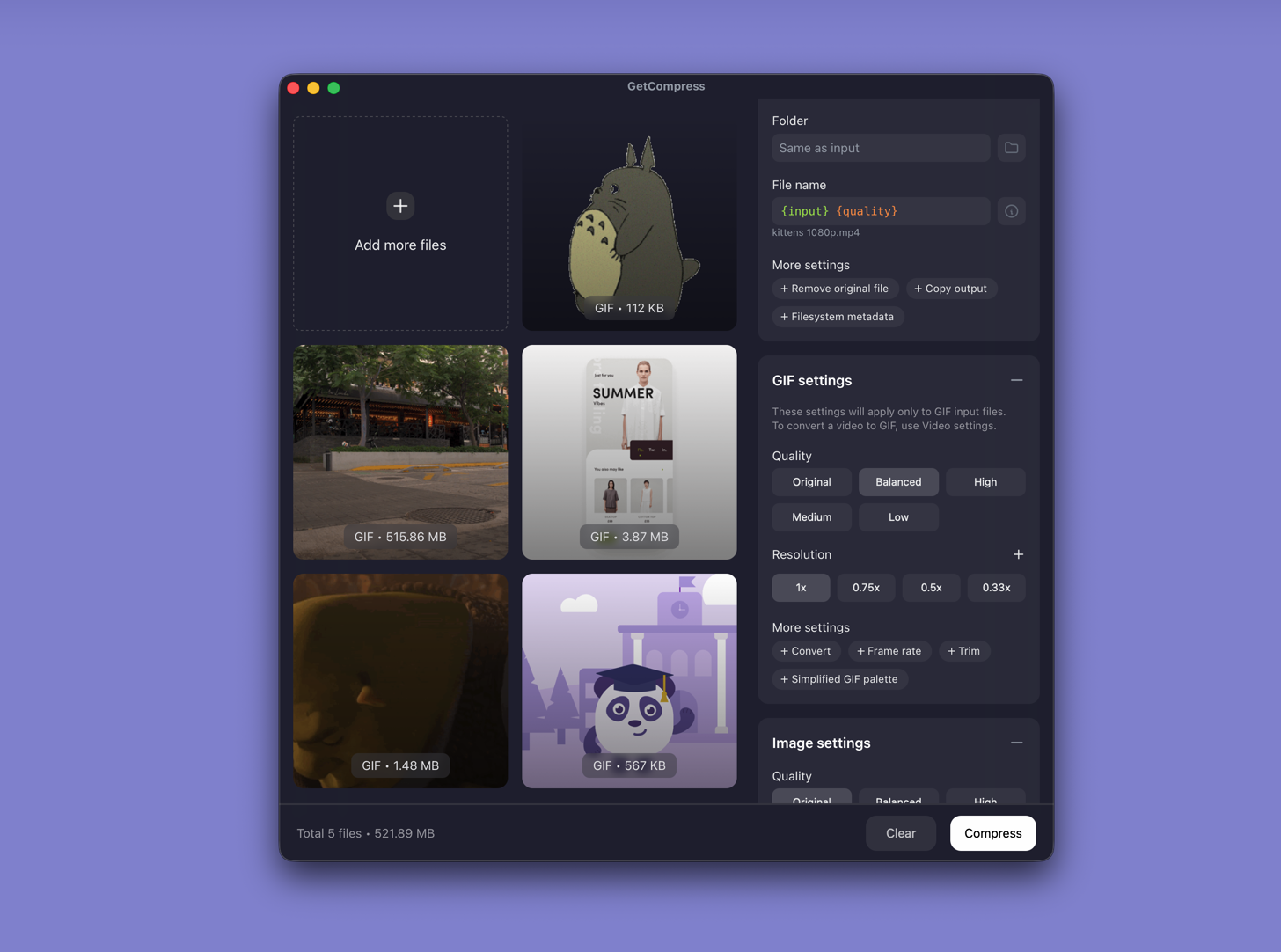
- Drop a folder of PNG or JPEG frames into GetCompress .
- Sort order in the queue if filenames are inconsistent.
- Set width (often 640 or 800 px for Teams) and fps.
- Preview the loop, then export GIF.
Save a preset such as “storyboard GIF 800w 4fps” when your team ships the same frame count each project. If banding persists, reduce width or frame count, or export MP4 when the channel allows it.
Method 2: Prepare frames in Photos
Best for: Cleaning oversized exports before any GIF encode.
- Export every frame at the same width and height from your design tool.
- Name files in sort order:
frame-001.png,frame-002.png, and so on. - Resize oversized frames in Photos or Paint to the target width (often 800 px for Teams).
- Store frames in a dedicated folder without spaces in filenames.
| Export width from design | Target for Teams GIF |
|---|---|
| 4000 px canvas | Scale to 800 px wide |
| 1920 px artboard | 800 or 960 px wide |
| 640 px component | Keep width |
Use PNG for flat UI with text. Use JPEG for photo-heavy sequences when slight loss is acceptable before GIF encoding.
If design used inconsistent names, batch rename in PowerShell before FFmpeg:
$i = 1
Get-ChildItem *.png | Sort-Object Name | ForEach-Object {
 Rename-Item $_.FullName ("frame-{0:D3}.png" -f $i)
 $i++
}
Limitation: Photos and Paint prepare stills. They do not assemble the animated GIF by themselves.
Method 3: Build a GIF with FFmpeg
Best for: Exact palette flags and repeatable PowerShell recipes.
winget install --id Gyan.FFmpeg -eNumbered PNG frames:
ffmpeg -framerate 4 -i frame-%03d.png `
 -vf "scale=800:-1:flags=lanczos,split[s0][s1];[s0]palettegen[p];[s1][p]paletteuse" `
 -loop 0 storyboard.gif
JPEG folder with a glob:
ffmpeg -framerate 3 -pattern_type glob -i 'frames/*.jpg' `
 -vf "scale=800:-1:flags=lanczos,split[s0][s1];[s0]palettegen[p];[s1][p]paletteuse" `
-loop 0 slideshow.gif| Lever | Smaller GIF | Clearer panels |
|---|---|---|
-framerate | 2 to 3 | Hold readable shots |
scale width | 640 px | 800 to 960 px |
| Frame count | Fewer frames | Keep only needed states |
Check Explorer file size after export. If the GIF still exceeds the upload cap, re-run at 640 px and 3 fps before you drop frames.
Limitation: You maintain the commands. Messy filenames break glob patterns.
Which method should you use
| Situation | Start here |
|---|---|
| Preview, presets, or messy filenames | GetCompress |
| Oversized design exports | Resize in Photos, then Method 1 or 3 |
| Exact palette flags or scripts | FFmpeg |
When MP4 is the better loop
Ask whether Teams or the doc tool accepts MP4 before you fight palette banding. Clipchamp can also build a short MP4 slideshow when GIF quality is unacceptable.
GetCompress fits when you ship storyboard GIFs often and want preview before palette limits hit. Keep source frames in frames-src\ and write GIF output to gif-out\. For stills outside GIF work, see how to compress images on Windows .
- Compress GIFs on WindowsCompress GIFs on Windows with GetCompress, Clipchamp MP4 export, or FFmpeg. Trim, shrink width, or switch to MP4 when the tool allows video.
- Convert Video to GIF on WindowsConvert MOV or MP4 to GIF on Windows with GetCompress, Clipchamp (for MP4), or FFmpeg. Trim first, keep width low, and ask if video is allowed.
- How to Compress Images on WindowsCompress images on Windows with GetCompress, Photos, or FFmpeg. Resize JPG and PNG, convert WebP, and keep sharp UI for email or web.
- Make GIF from Photos on MacMake a GIF from photos on Mac with GetCompress, Preview prep, or FFmpeg. Sort frames, set fps, resize, and palette-encode for Slack loops.