Batch Resize Images on Windows: 3 Methods
Batch resize images on Windows with GetCompress, Photos, or FFmpeg. Scale dozens of PNG and JPEG files to a shared max width locally.
The shared project folder holds 48 PNG mockups at 2880 px wide. Opening each file in Paint to set the same width takes an hour you do not have. Batch resize images once with a fixed max edge, then compress or convert in a second pass if needed.
When batch resize pays off
| Signal | Batch approach |
|---|---|
| Same max width for every hero | One preset or FFmpeg loop |
| Mixed PNG and JPEG in one folder | Unified app or separate commands |
| Weekly design exports | Folder monitoring plus saved preset |
| One-off screenshot | Photos is enough |
Batch resize changes pixel dimensions only. It does not replace format choice. See how to compress images on Windows for JPEG vs PNG vs WebP after scaling.
Organize source folders
Copy sources into an originals subfolder before batch work. Never overwrite masters when a client asks for a larger revision next week.
- Create
originals\andout\beside your working folder. - Move or copy files to process into
originals\. - Run batch commands writing only to
out\. - Spot-check three files: one photo, one UI screenshot, one image with text.
Remove Thumbs.db and stray files from the batch directory when commands use wildcards. Quote paths that contain spaces in PowerShell. Sort portrait and landscape into subfolders if your max edges differ.
Method 1: GetCompress
Best for: Mixed image folders, reusable width presets, and people who do not write scripts running the same resize weekly.
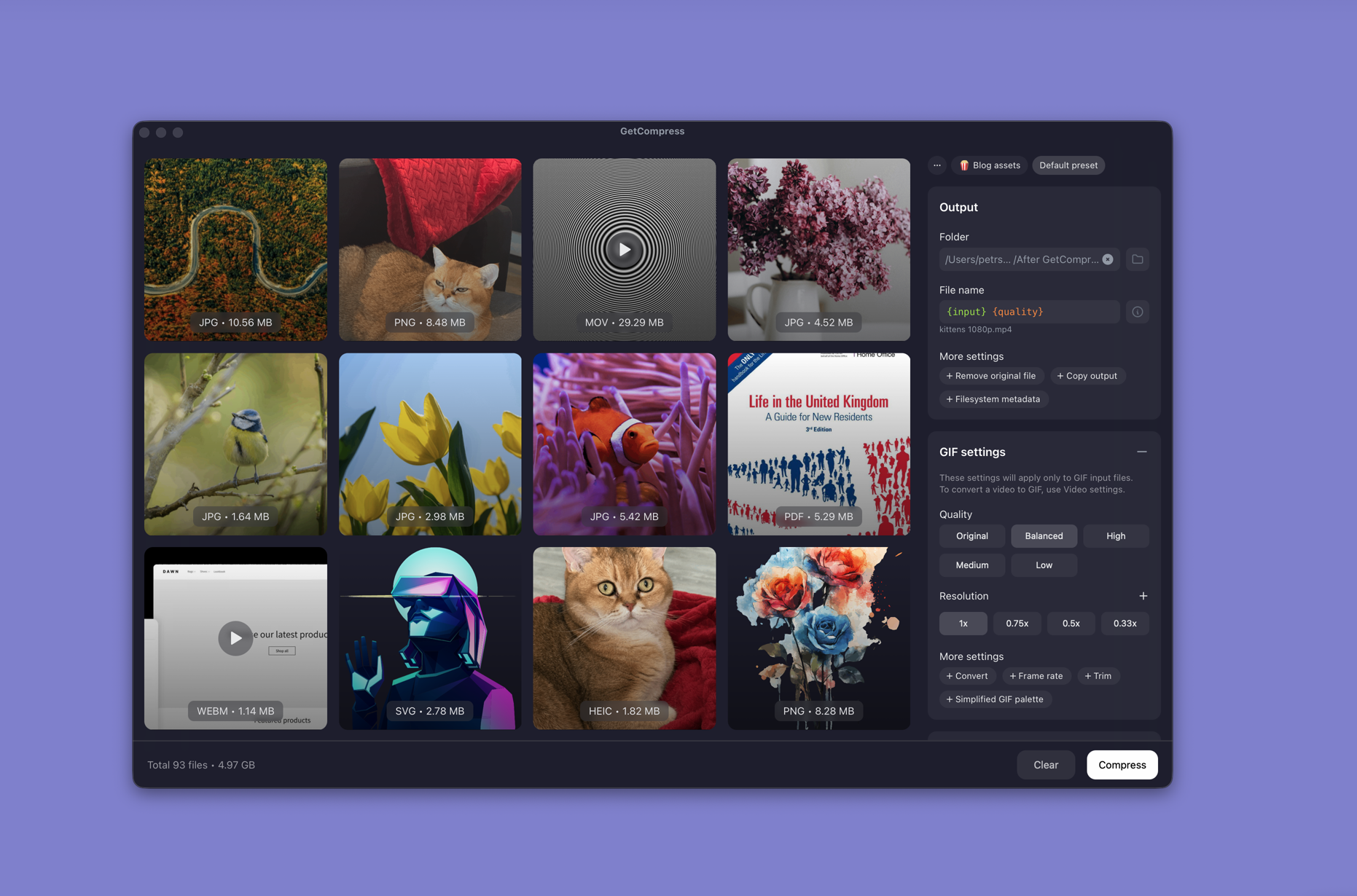
- Open GetCompress and drop the whole folder.
- Set max width, output format, and quality (for example High or Medium) in one panel.
- Save a preset (for example “web JPEG 1920”).
- Preview an edge case, then export to
out\. - Optional: enable folder monitoring when design tools write to a shared directory.
Exact target file size is video only. For images, control size with dimensions and quality. Processing stays on your PC.
Method 2: FFmpeg in PowerShell
Best for: Scriptable folder loops without a GUI.
Install FFmpeg with winget, then scale every JPEG in originals:
winget install --id Gyan.FFmpeg -ecd originals
mkdir ..\out
Get-ChildItem *.jpg | ForEach-Object {
ffmpeg -i $_.Name -vf scale=1920:-2 "..\out\$($_.Name)"
}Batch PNG the same way:
Get-ChildItem *.png | ForEach-Object {
 ffmpeg -i $_.Name -vf scale=1920:-2 "..\out\$($_.Name)"
}
For pixel-width fundamentals, see resize image pixels on Windows .
Limitation: Command-heavy. No preview or saved presets unless you wrap the script yourself.
Method 3: Photos or Paint for one file
Best for: A single screenshot or hero when you do not need a folder loop.
Photos: open the image, use resize or export options available on your Windows version, then save a copy.
Paint: open the image, Resize, set pixels, save as a new file.
Limitation: Painful for dozens of files with the same rule.
Quality after resize
| Asset type | Width hint |
|---|---|
| Blog hero | 1920 px max edge |
| Inline figure | 1200 to 1600 px |
| Email banner | 600 to 800 px |
Resize first, then tune lossy quality on JPEG exports. Avoid re-saving the same JPEG at lower quality repeatedly. Compare total folder size before and after in File Explorer properties.
Online batch resize services receive every file you upload. For NDA mockups, keep the folder on disk. See are online file compressors safe on Windows .
When filenames include @2x or @3x suffixes from design tools, normalize names in the output folder so CMS imports do not create confusing duplicates.
When a one-off resize is enough
Photos, Paint, or a short FFmpeg loop can work when the job is one folder once and you are comfortable in PowerShell.
GetCompress also helps when you send similar files often, formats mix, or people who do not write scripts need a named preset. Processing stays local. It does not replace FFmpeg in a minimal CI script. For the Mac workflow, see batch resize images on Mac .
- Resize Image Pixels on WindowsResize image pixels on Windows with GetCompress, Photos or Paint, or FFmpeg. Match export width to where images actually display.
- How to Compress Images on WindowsCompress images on Windows with GetCompress, Photos, or FFmpeg. Resize JPG and PNG, convert WebP, and keep sharp UI for email or web.
- Batch Compress and Convert on WindowsBatch compress and convert on Windows with GetCompress, Task Scheduler, or PowerShell. Local presets for JPEG, MP4, and PDF folders.
- Batch Resize Images on MacBatch resize images on Mac with GetCompress, Preview, or sips. Scale dozens of PNG and JPEG files to a shared max width locally.