Compress JPG on Windows: 3 Methods
Compress JPG on Windows with GetCompress, Photos or Paint, or FFmpeg. Resize first, then lower quality for email and upload limits without heavy artifacts.
The vendor form accepts five images and 15 MB total. Your five camera JPEG files add up to 38 MB because each photo is 4032 px wide at quality 95. The form counts bytes, not megapixels. You need smaller pixel dimensions, a modest quality reduction, or both. Keep the master untouched.
Three solid routes cover most Windows jobs: GetCompress for recurring batches and presets, Photos or Paint for one or a few files, and FFmpeg when you already script in PowerShell.
Method 1: GetCompress
Best for: A folder of JPEG photos (often mixed with PNG or WebP) when you want the same width and quality every week.
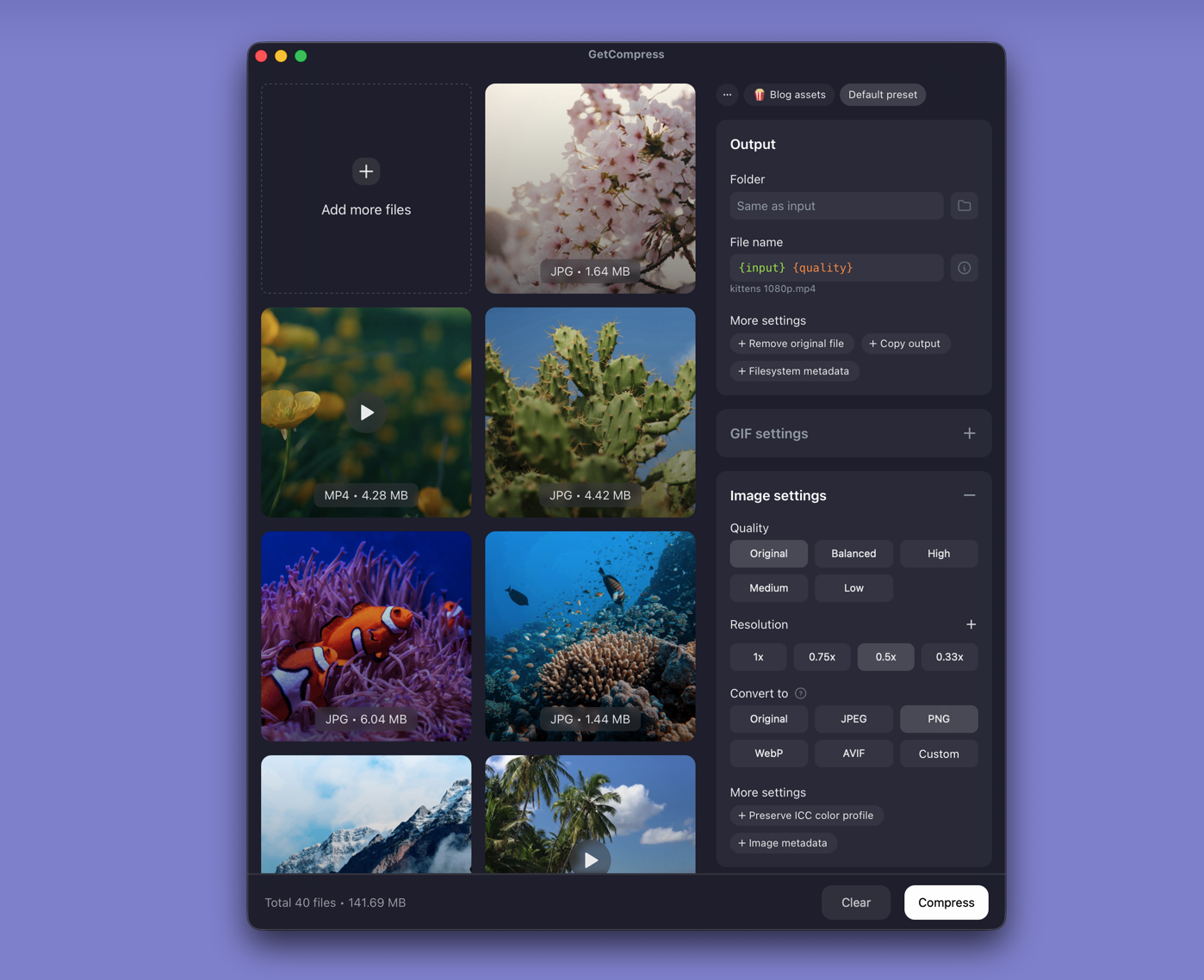
- Open GetCompress and drop one JPEG or a folder into the queue.
- Set max width (for example 1920 px) and quality (for example High).
- Preview faces and product edges if the shot must stay clean.
- Export, then upload the copies.
Processing stays on your PC. Save a preset such as “web JPEG 1920px”. Convert PNG or WebP to JPEG in the same pass when the destination format is fixed. Exact target file size applies to video only, not images.
Method 2: Compress in Photos or Paint
Best for: One or a few JPEG files with no need for a saved preset.
Photos (Windows 11):
- Open the JPEG in Photos.
- Choose … → Resize image, pick a width, and save a copy.
Paint works on every Windows PC: open the file, Resize, set pixels, then Save as JPEG with the quality option when available.
Zoom on faces, product edges, and text overlays. If blocky artifacts appear, raise quality one step or keep more width. Always save a copy instead of overwriting a source that might return to a design tool.
Limitation: Slow for thirty product shots with identical settings. No reusable preset across mixed folders.
Method 3: Batch with FFmpeg
Best for: A folder that shares one scale and quality setting.
winget install --id Gyan.FFmpeg -emkdir out
Get-ChildItem *.jpg | ForEach-Object {
ffmpeg -i $_.Name -vf scale=1920:-2 -q:v 3 "out\$($_.BaseName).jpg"
}Lower -q:v values mean higher quality in FFmpeg JPEG output. Test one file before you batch hundreds. Document the flags in your repo so teammates do not guess different settings.
Limitation: Command-heavy. Mixed formats still need scripting or a dedicated app.
Which method should you use
| Situation | Start here |
|---|---|
| Recurring portal uploads, mixed formats, or presets | GetCompress |
| One or two photos | Photos or Paint |
| Simple same-width PowerShell batch | FFmpeg |
Broader format advice: how to compress images on Windows . WebP sources: WebP to JPG on Windows . Keep NDA shots on disk ( are online file compressors safe on Windows ).
Quality, dimensions, and generational loss
Sliding quality alone on a 4000 px JPEG rarely fixes upload rejection. Resize first, then tune quality.
| Display context | Starting width | Quality hint |
|---|---|---|
| Blog hero | 1600 to 1920 px | 80 to 85 |
| Email inline | 600 to 800 px | 75 to 85 |
| Thumbnail in deck | 1280 px | 80 to 90 |
| Full-screen review | Keep higher width | 85 to 92 |
Each re-save of a JPEG at lower quality adds artifacts. Work from the largest master you still have, resize once, export once, and archive the result. If you only have a heavily crushed JPEG, avoid another aggressive pass. Read lossy vs lossless compression .
Compare one representative photo with the image comparison tool .
When Photos or FFmpeg is enough
Photos or Paint can finish one file. FFmpeg can work when the folder is uniform and someone maintains the script.
GetCompress also works well for that job. It also covers the same width and quality return often, when PNG and JPEG arrive together, or when folder monitoring should compress new phone-sync imports automatically. It does not replace Photos for cataloguing or a raw editor for retouch. Store delivery JPEGs apart from camera originals so editors do not re-compress the wrong copy.
- How to Compress Images on WindowsCompress images on Windows with GetCompress, Photos, or FFmpeg. Resize JPG and PNG, convert WebP, and keep sharp UI for email or web.
- Convert WebP to JPG on WindowsConvert WebP to JPG on Windows with GetCompress, Paint, or PowerShell. Flatten transparency first for email, slides, and apps that only accept JPEG.
- Convert PNG to JPG on WindowsConvert PNG to JPG on Windows with GetCompress, Paint, or FFmpeg. Keep PNG when you need transparency; flatten first when you do not.
- Compress JPG on MacCompress JPG on Mac with GetCompress, Preview, or sips. Resize first, then lower quality for email and upload limits without heavy artifacts.