Open HEIC Files on Windows: 3 Methods
Open and convert HEIC on Windows with GetCompress, the HEIF Store extension, or FFmpeg. Local HEIC to JPEG for email, MLS, and uploads.
A client sends iPhone photos as HEIC. File Explorer shows blank icons. Photos says it cannot open the file. Outlook previews fail. Most portals still want JPEG. You can install a Windows codec to view HEIC, or convert locally so every teammate opens the same files without Store policy fights.
Why HEIC fails on Windows
HEIC (often HEIF with HEVC stills) saves space on iPhones. Windows does not always ship with a decoder enabled.
| Symptom | Likely cause |
|---|---|
| Blank thumbnail in File Explorer | Missing HEIF codec |
| ”Can’t open this file” in Photos | Same codec gap |
| Works on Mac, fails on PC | macOS decodes HEIC by default |
| Email shows attachment only | Client has no HEIC renderer |
Live Photos may arrive as a still HEIC plus a short MOV. For MLS or CMS uploads you usually want the still only. Separate stills before a batch JPEG run.
| HEIC | JPEG | |
|---|---|---|
| Windows without codec | Often fails | Opens everywhere |
| MLS / legacy CMS | Often rejected | Accepted |
| Typical size at similar quality | Smaller | Larger |
Sensitive shoots should stay on disk. See online compressor privacy risks on Windows .
Method 1: Convert with GetCompress
Best for: Whole transfer folders, locked-down PCs without Store access, and resize plus convert in one pass.
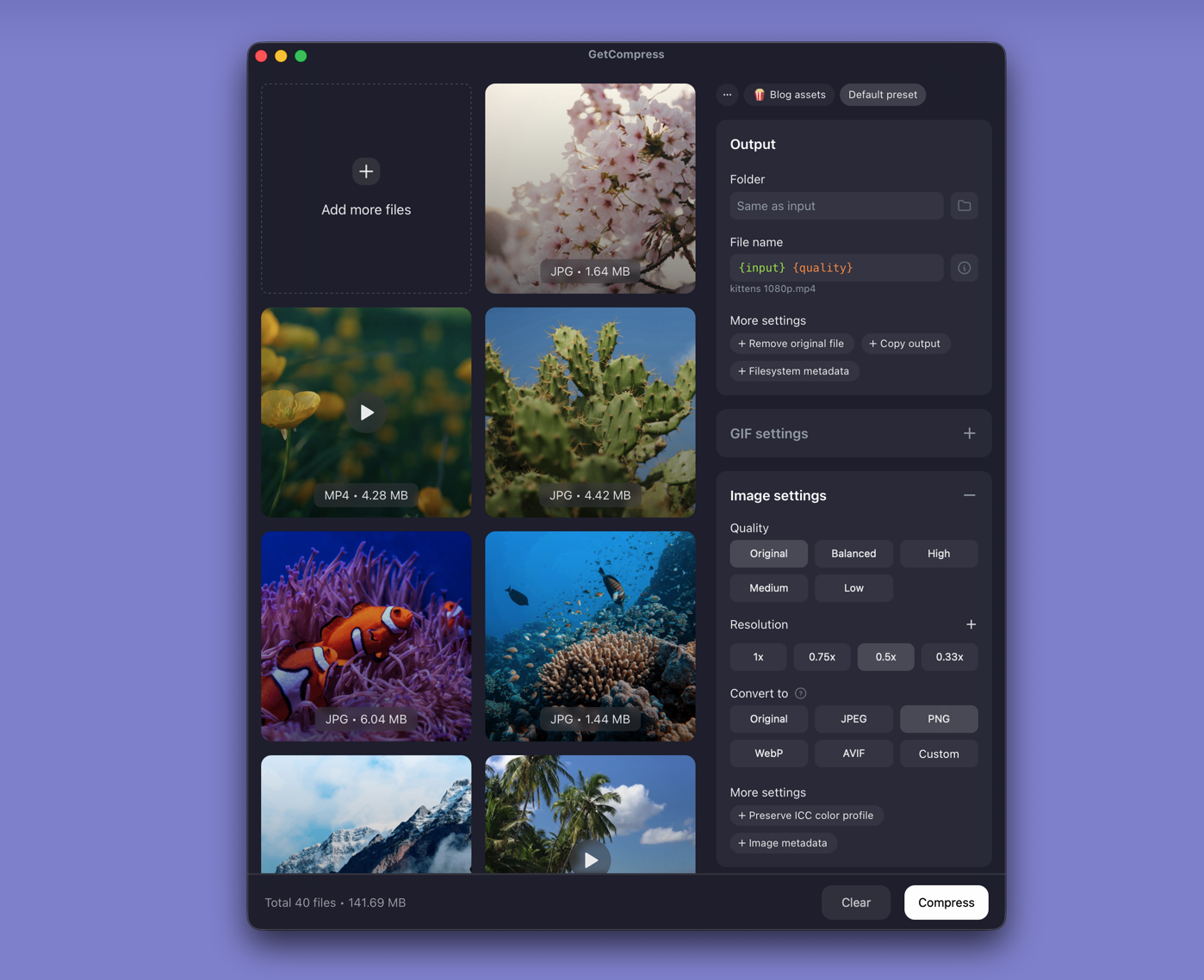
- Drop HEIC files or a folder into GetCompress .
- Choose JPEG output.
- Set max width (for example 3000 px for listings) and quality (for example High or Medium).
- Export to a delivery folder. Keep the HEIC masters.
Processing stays on your PC. Save a preset such as “listing JPEG 3000 high” so you can reuse it next time. If JPEG files still exceed portal caps, choose a lower quality level (such as Medium or Low) or a smaller width in the same preset. Image compression does not use an exact target file size (that workflow is video only).
Method 2: Install the HEIF codec
Best for: Opening a few HEIC files in Photos when Store installs are allowed.
- Open Microsoft Store.
- Search HEIF Image Extensions and install.
- Install HEVC Video Extensions if Live Photo pairs fail to decode.
- Re-open the file in Photos, or restart File Explorer if thumbnails stay blank.
Photos can export one file: open the image, then … → Save as (or Edit → Save a copy) and pick JPEG. Fine for five files. Painful for a whole shoot.
Corporate PCs often block Store installs. In that case use Method 1 or 3 on a machine you control.
Limitation: Viewing depends on Store policy. Sharing still usually needs JPEG.
Method 3: Convert with FFmpeg
Best for: Scripted folders when you already maintain FFmpeg.
winget install --id Gyan.FFmpeg -e
mkdir jpeg-out
Get-ChildItem *.heic, *.HEIC | ForEach-Object {
 ffmpeg -i $_.Name -q:v 3 "jpeg-out\$($_.BaseName).jpg"
}
Always write to jpeg-out\ so originals stay untouched. Spot-check one file before you run a full card dump.
Limitation: No preview UI. You own the flags when Windows or FFmpeg updates.
Which method should you use
| Situation | Start here |
|---|---|
| Batch convert, resize, presets, or Store blocked | GetCompress |
| Open a few files on a normal PC | HEIF Image Extensions |
| Scripts / CI | FFmpeg |
For Mac-side conversion, see HEIC to JPG on Mac and batch convert HEIC on Mac .
Check before you upload
Open a converted JPEG at 100% zoom and check faces, thin lines, and small text. Keep masters. Re-encoding the same lossy JPEG repeatedly adds generation loss.
If size is still the blocker after conversion, see how to compress images on Windows . Typical email caps: email attachment size limits .
When the codec alone is enough
HEIF Image Extensions plus Photos can work when you only need to view a handful of HEIC files and Store installs are allowed.
GetCompress fits when every share must be JPEG, Store is blocked, or you convert and resize whole folders every week. It does not replace Lightroom or Photoshop for editing. Deliver JPEG bundles so locked-down laptops never depend on codec policy.
- Convert HEIC to JPG on MacConvert HEIC to JPG on Mac with GetCompress, Photos, or sips in Terminal. Batch HEIC to JPEG for MLS, email, and uploads without uploading iPhone photos.
- Batch Convert HEIC on MacBatch convert HEIC to JPG on Mac with GetCompress, Photos, or Terminal sips. Real estate and event photo workflows.
- How to Compress Images on WindowsCompress images on Windows with GetCompress, Photos, or FFmpeg. Resize JPG and PNG, convert WebP, and keep sharp UI for email or web.
- Online File Compressors Privacy Risks on WindowsWhy free compressor websites show ads and log uploads, and what to use on Windows instead of browser upload tools.