Convert PNG to PDF on Windows: 3 Methods
Make a PDF from PNG images on Windows with Print to PDF, then compress if SharePoint rejects the file. Resize sources first for screen-only sharing.
After a review meeting you may have fourteen PNG screens in a folder. The client portal wants one PDF. One PDF beats a zip for page order and single-field uploads. Merging alone does not reduce Retina mockups. Cap width before print, or compress the PDF after.
When one PDF beats many PNG files
| Scenario | Why merge into PDF |
|---|---|
| SharePoint single file | One upload |
| Print vendor | Fixed sequence |
| HR packet | Page order locked |
| One attachment |
Reverse workflows: PDF to images on Windows , PDF to PNG on Windows . For JPEG scans: JPG to PDF on Windows .
PNG alpha may flatten to white in print preview. Flatten in Figma when the background must be brand-colored.
Method 1: Combine PNG with Print to PDF
Best for: Building the PDF on Windows without extra installs.
- Sort PNG files in File Explorer by name (use
page-01.pngstyle names). - Multi-select, right-click → Print.
- Choose Microsoft Print to PDF.
- Confirm one-up layout and page order in the print dialog.
- Save the merged PDF.
Fix orientation in Paint before print when phone scans are sideways. Photos can print selected images to the same printer when the layout fits.
Limitation: A folder of 3000 px mockups can produce a 30 MB PDF that SharePoint rejects.
Method 2: Resize sources before print
Best for: Screen review packets under email or portal caps.
Batch resize with FFmpeg, then print from the resized folder:
winget install --id Gyan.FFmpeg -e
mkdir resized
Get-ChildItem *.png | ForEach-Object {
 ffmpeg -i $_.Name -vf scale=1920:-2 "resized\$($_.BaseName).png"
}
For PNG to JPEG when transparency is gone: PNG to JPG on Windows . Windows does not ship a Preview-style Quartz “Reduce File Size” filter. Source resize plus Method 3 is the reliable path.
Limitation: You maintain the resize step yourself.
Method 3: Compress the PDF in GetCompress
Best for: Recurring submissions when the merged PDF still exceeds the portal limit.
GetCompress does not merge PNG into PDF. Print first, then:
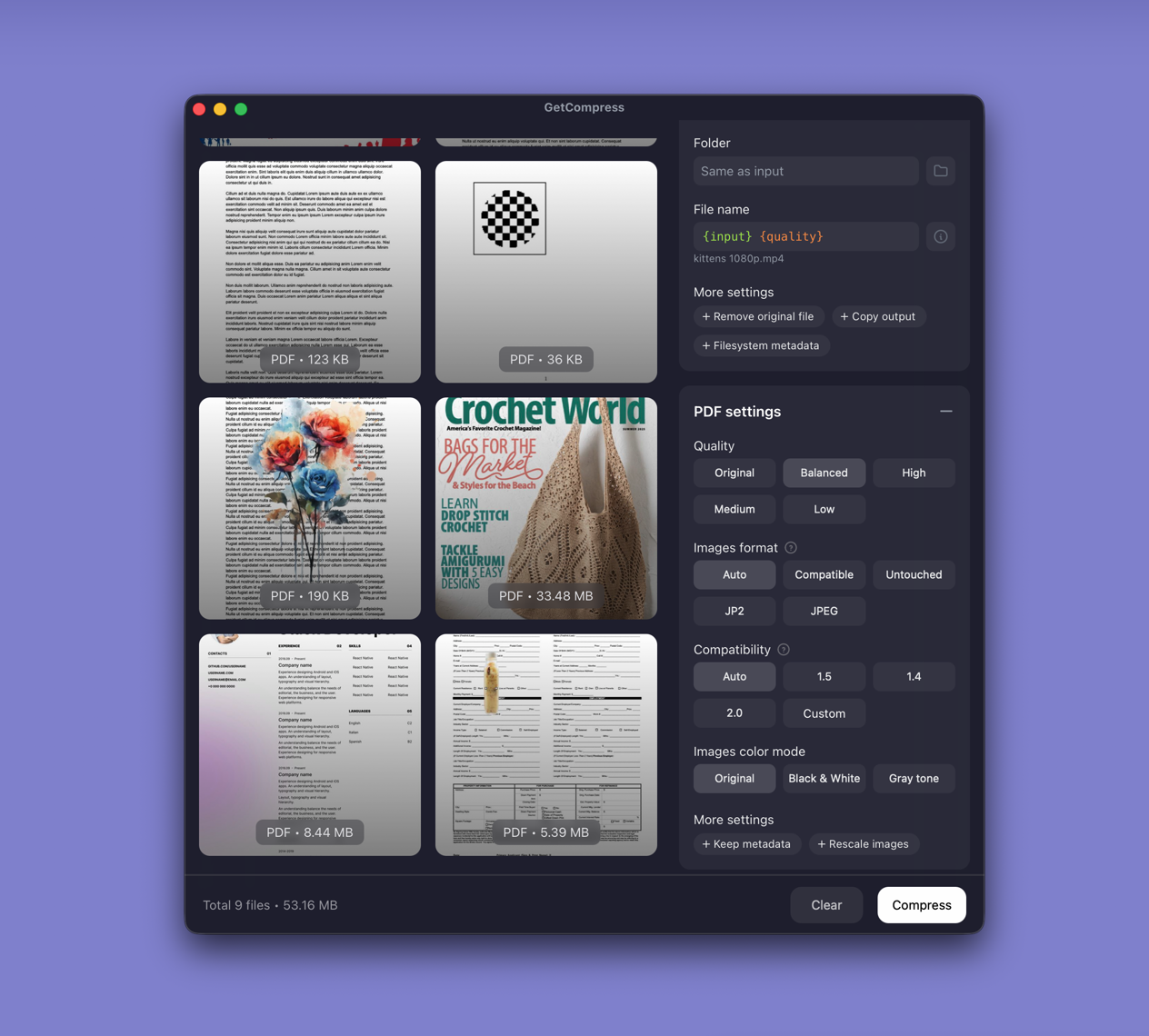
- Drop the merged PDF into GetCompress .
- Pick a PDF compression preset and preview a page with small type.
- Export a delivery copy.
- Save a preset per client portal when the same limit repeats.
PDF compression uses optimization presets, not an exact target file size.
Which method should you use
| Situation | Start here |
|---|---|
| Build the document | Print to PDF |
| Sources are huge Retina PNG | Resize first, then print |
| Merged file still too large | GetCompress |
More detail: how to compress PDF on Windows . Cap PNG width before merge: how to compress images on Windows .
Check before you upload
Confirm page order, orientation, and one UI screen with small type in Edge. Keep full-resolution PNG sources. Write compressed deliverables to a separate folder.
When Print to PDF alone is enough
Print to PDF with sensible source width is enough for many one-off packets.
GetCompress fits when you rebuild the same kind of PDF every week and portals keep rejecting size. It does not replace a PDF editor for forms, signatures, or redaction.
- Convert JPG to PDF on WindowsCombine JPG images into one PDF on Windows with Microsoft Print to PDF, set page order, then shrink the file if Outlook or a portal rejects it.
- Export PDF to Images on WindowsTurn PDF pages into PNG or JPEG on Windows with Edge, pdftoppm, or a resize pass in GetCompress. Batch slide decks without online splitters.
- How to Compress PDF on WindowsCompress PDF on Windows with GetCompress, PowerPoint re-export, or Ghostscript. Shrink decks and scans for Outlook and portals.
- Convert PNG to PDF on MacMake a PDF from PNG images on Mac with Preview, then compress if email rejects the file. Resize sources first for screen-only sharing.