Convert FLAC to MP3 on Mac: 3 Methods
Convert FLAC to MP3 on Mac with GetCompress, FFmpeg, or afconvert for M4A when MP3 is not required. Keep FLAC masters.
You ripped a CD to FLAC for archival quality. A client portal, an old embed player, or a car stereo export only accepts MP3. The FLAC folder is correct for storage; delivery is a separate step that trades size for compatibility. Converting locally keeps unreleased mixes off upload sites.
FLAC vs MP3 on Mac
FLAC is lossless: every sample from the rip stays intact. MP3 is lossy: smaller files, universal support, and quality depends on bitrate and encoder settings.
| Format | Size | Typical use on Mac |
|---|---|---|
| FLAC | Large | Archive, hi-fi listening, editing master |
| MP3 | Smaller | Legacy CMS, email, older hardware |
| M4A (AAC) | Smaller than MP3 at same quality | Apple Music, most modern apps |
On Mac, M4A often replaces MP3 for new workflows. Use MP3 only when something downstream explicitly rejects AAC. Keep FLAC masters in an archive folder. Write MP3 copies to deliverables/. For broader audio compression, see compress audio files on Mac .
Method 1: GetCompress
Best for: Whole album folders, consistent bitrate, and presets you reuse for the same client.
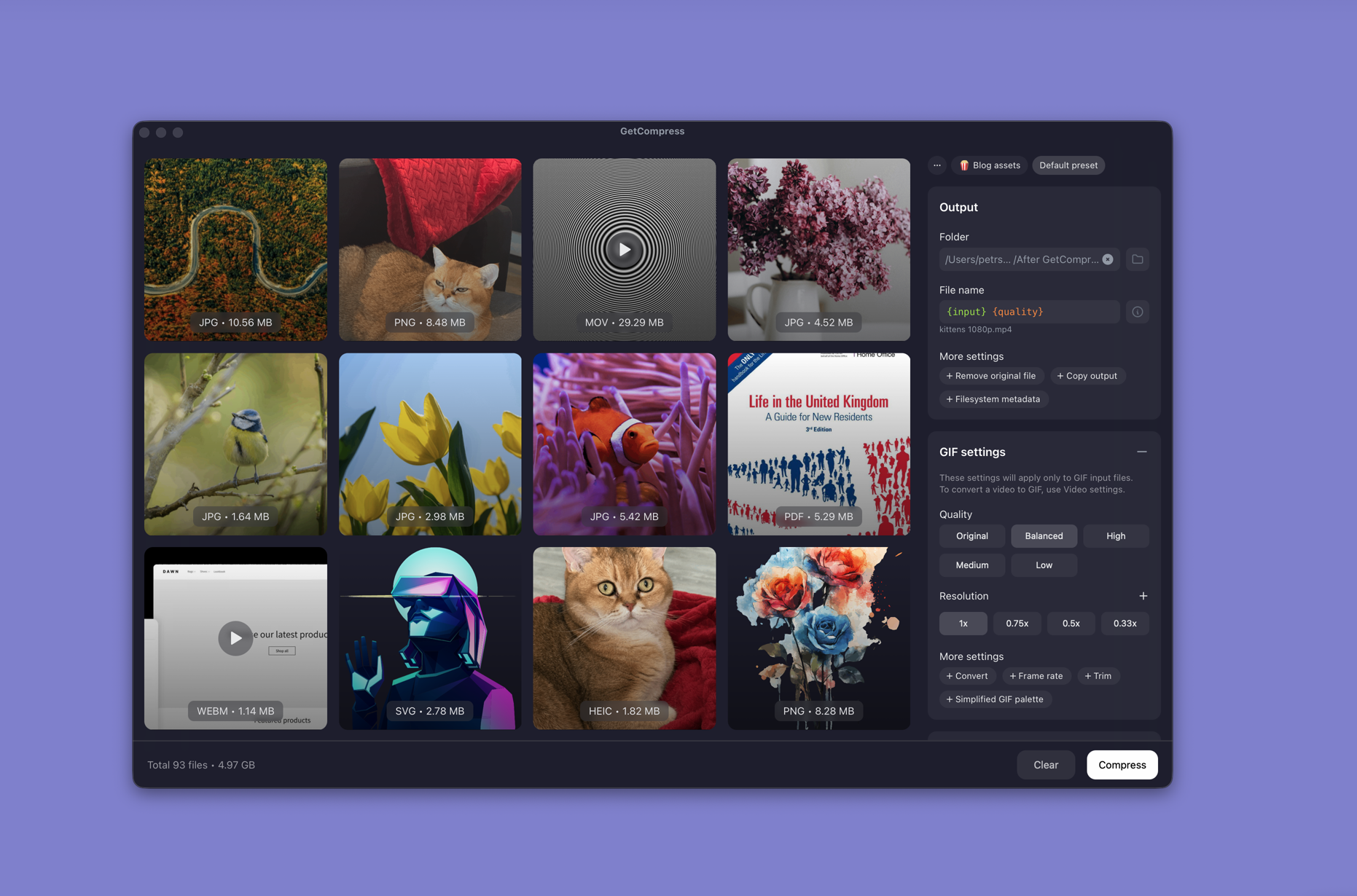
- Drop a folder of FLAC files into GetCompress .
- Choose MP3 output and set quality or bitrate.
- Spot-check one track in preview if available, then export the queue.
Processing stays on your Mac. Save a preset such as “legacy MP3 q2” or “speech MP3 128k”. Switch to M4A in the same window when a recipient accepts AAC.
Method 2: FFmpeg in Terminal
Best for: Scripts, exact flags, and one-off Terminal batches.
Install FFmpeg with Homebrew if needed:
brew install ffmpegSingle file:
ffmpeg -i track.flac -codec:a libmp3lame -q:a 2 track.mp3Batch every FLAC in a folder:
mkdir mp3-out
for f in *.flac; do
 ffmpeg -i "$f" -codec:a libmp3lame -q:a 2 "mp3-out/${f%.flac}.mp3"
done
Preserve tags when album art matters:
ffmpeg -i album.flac -codec:a libmp3lame -q:a 2 -map_metadata 0 album.mp3| Flag | Plain meaning |
|---|---|
-codec:a libmp3lame | MP3 encoder |
-q:a 2 | VBR quality (lower number = higher quality on typical builds) |
Listen to one converted track before you batch fifty files.
Limitation: You maintain the commands yourself.
Method 3: afconvert for M4A
Best for: When MP3 is not required and you want a built-in tool without Homebrew.
afconvert -d aac -f m4af -b 192000 track.flac track.m4aafconvert on Mac is strong for AAC and M4A, not MP3. Use FFmpeg or GetCompress when the destination must be MP3.
Limitation: Does not solve a hard MP3-only requirement.
Which method should you use
| Situation | Start here |
|---|---|
| Album folders, presets, files you send often | GetCompress |
| Scripts or exact encoder flags | FFmpeg |
| M4A is accepted | afconvert |
When FFmpeg alone is enough
FFmpeg can finish a single album when you already know the flags and do not need a reusable UI preset.
GetCompress also helps when the same bitrate recipe repeats weekly, when mixed audio folders land in one queue, or when you want local processing without rewriting Terminal loops. It does not replace a DAW. After conversion, if MP3 files are still too large for email, see compress MP3 on Mac without touching FLAC masters. For Windows, see FLAC to MP3 on Windows .
- Compress Audio Files on MacCompress audio on Mac with GetCompress, QuickTime, or afconvert and FFmpeg. AAC and M4A for podcasts, lectures, and uploads.
- Convert WAV to MP3 on MacConvert WAV to MP3 on Mac with GetCompress, afconvert for M4A, or FFmpeg. Keep WAV masters and export smaller share copies for email and uploads.
- Convert M4A to MP3 on MacConvert M4A to MP3 on Mac with GetCompress, FFmpeg, or a trimmed QuickTime source. Export MP3 when a form or device rejects AAC.
- Convert FLAC to MP3 on WindowsConvert FLAC to MP3 on Windows with GetCompress or FFmpeg. Keep FLAC masters; export MP3 for legacy players and uploads.